What is Continuous Integration (CI)?
Continuous Integration (CI) is a development practice where developers frequently merge their code changes into a central repository. Each integration is automatically built and tested, allowing teams to detect problems early.
Typical CI workflow:
- Developers code, build, and test locally
- If everything works, they push changes to a centralized version control system
- This process repeats continuously for all team members
The Problem with Manual Integration
When multiple developers merge code into a central repository many times a day, issues can accumulate:
- Code is merged but not truly integrated
- Bugs, conflicts, and errors are only discovered much later, often after days or weeks
- Fixing these issues requires significant rework, especially as deadlines approach
- Integration becomes a painful, time-consuming process
How Continuous Integration Solves This
Continuous Integration automates the process:
- Every code change triggers an automated build and test
- If something breaks, the developer is notified immediately
- Developers stop and fix issues as soon as they are detected
- Problems are caught and resolved early, preventing accumulation
Benefits:
- Immediate feedback on code quality
- Fewer integration headaches
- Higher code quality and faster delivery
What is Jenkins?
Jenkins is the most popular open-source tool for implementing Continuous Integration. It started as a CI tool but has grown into a powerful automation server for many DevOps tasks.
Basic Jenkins CI process:
- Developer pushes code to repository
- Jenkins fetches the code, builds it, runs tests, and notifies the developer of results
Jenkins Features and Extensibility
Jenkins is:
- Open source: Free to use and supported by a large community
- Extensible: Thousands of plugins are available for version control, build tools (Java, .NET, Node.js, etc.), cloud providers, testing, and more
Developers worldwide contribute to Jenkins, making it better every day. Its plugin ecosystem allows Jenkins to support almost any workflow or toolchain.
Jenkins Use Cases
You can use Jenkins for:
- Continuous Integration (CI)
- Continuous Delivery (CD)
- Running scripts and automation tasks
- Running software test cases
- Cloud automation
- Integrating with other DevOps, developer, or tester tools
Jenkins is highly flexible and can be adapted to many different automation needs.
Jenkins Installation
Jenkins installation is straightforward:
- Requires Java JRE or JDK (JDK is recommended)
- Runs on any major operating system (Windows, Linux, macOS)
Once installed, Jenkins can be accessed via a web interface and configured to fit your team's workflow.
Setting Up Jenkins on EC2
Prerequisites and Instance Setup
Step 1: Launch EC2 Instance
When launching your EC2 instance, consider the following:
- Instance type: Ubuntu (recommended for easy installation) or Amazon Linux 2
- Instance size: At least t3.small with 2GB RAM for building and testing projects
- Security group: Allow port 8080 (Jenkins default port, same as Tomcat)
Step 2: Connect to EC2
ssh -i your-key.pem ubuntu@your-ec2-public-ipInstallation Steps
Update System
sudo apt update && sudo apt upgrade -yInstall JDK
sudo apt install openjdk-21-jdk -yInstall Jenkins
sudo wget -O /etc/apt/keyrings/jenkins-keyring.asc \
  https://pkg.jenkins.io/debian-stable/jenkins.io-2023.key
echo "deb [signed-by=/etc/apt/keyrings/jenkins-keyring.asc]" \
  https://pkg.jenkins.io/debian-stable binary/ | sudo tee \
  /etc/apt/sources.list.d/jenkins.list > /dev/null
sudo apt update
sudo apt install jenkins -y
Verify Jenkins is Running
sudo systemctl status jenkinsExpected output:
● jenkins.service - Jenkins Continuous Integration Server
     Loaded: loaded (/usr/lib/systemd/system/jenkins.service; enabled; preset: enabled)
     Active: active (running) since Sun 2025-11-30 12:06:57 UTC; 36s ago
   Main PID: 4167 (java)
      Tasks: 50 (limit: 2204)
     Memory: 482.4M (peak: 508.8M)
        CPU: 20.379s
Jenkins Directory Structure
Check the Jenkins home directory:
ls /var/lib/jenkins/Key directories and files:
config.xml- Main Jenkins configurationjobs/- All Jenkins jobsplugins/- Installed pluginsusers/- User accountssecrets/- Security credentials
Backing Up and Restoring Jenkins
- Shut down Jenkins service
- Archive the
/var/lib/jenkinsdirectory - To restore: Replace the directory with your backup and restart Jenkins
Initial Jenkins Setup via Web Interface
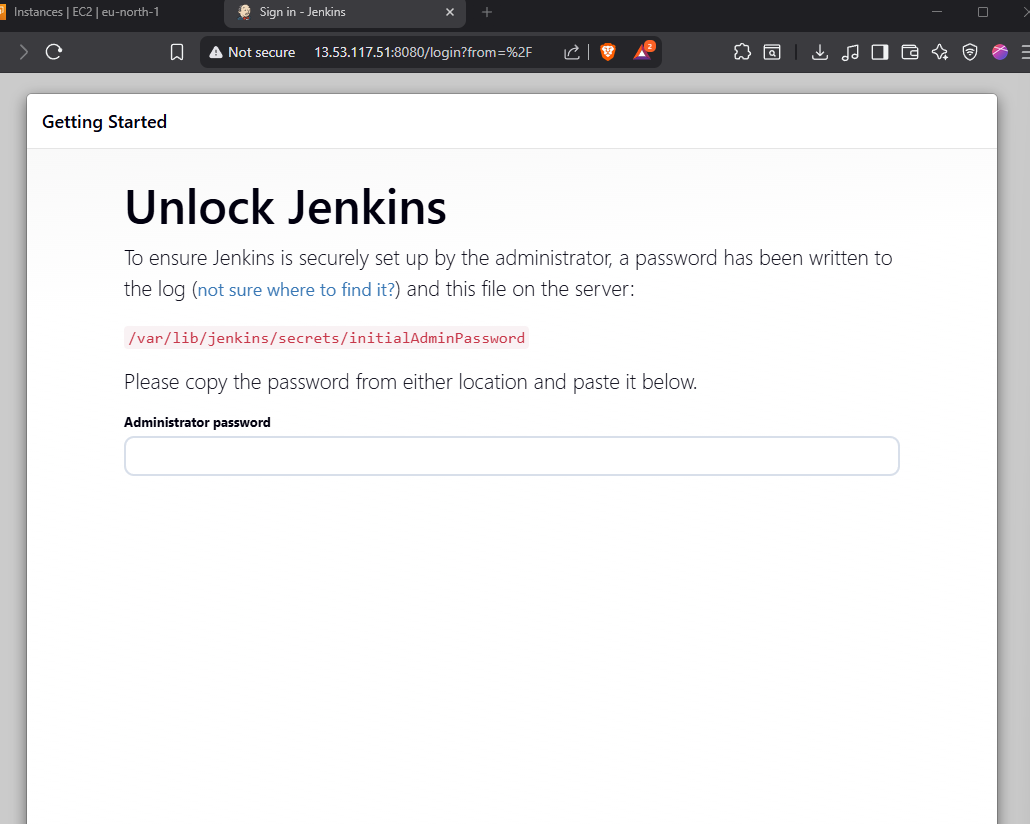
Access Jenkins
Open your browser and navigate to:
http://your-ec2-public-ip:8080- You will see the "Unlock Jenkins" page
Get the initial admin password:
sudo cat /var/lib/jenkins/secrets/initialAdminPassword- Copy and paste the password into the unlock page
Install Suggested Plugins
Jenkins is powerful because of its plugin ecosystem. Plugins determine what Jenkins can do:
- Build tool plugins: Maven, Ant, Gradle, Node.js, etc.
- Integration plugins: Git, GitHub, Docker, Kubernetes, AWS, etc.
- Testing plugins: JUnit, TestNG, Sonar, etc.
Click Install suggested plugins to get common plugins for most use cases.
Create First Admin User
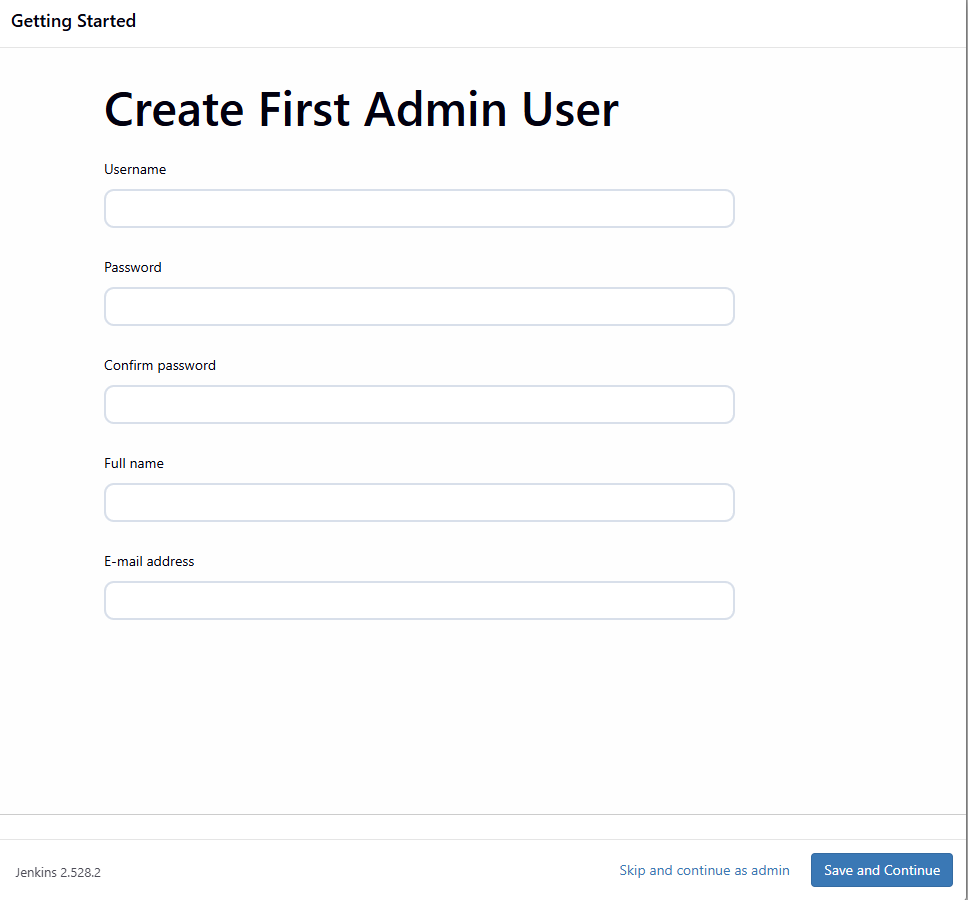
After plugins are installed, create your first admin user:
- Username and password
- Full name and email
- Click Save and Continue
Welcome to Jenkins
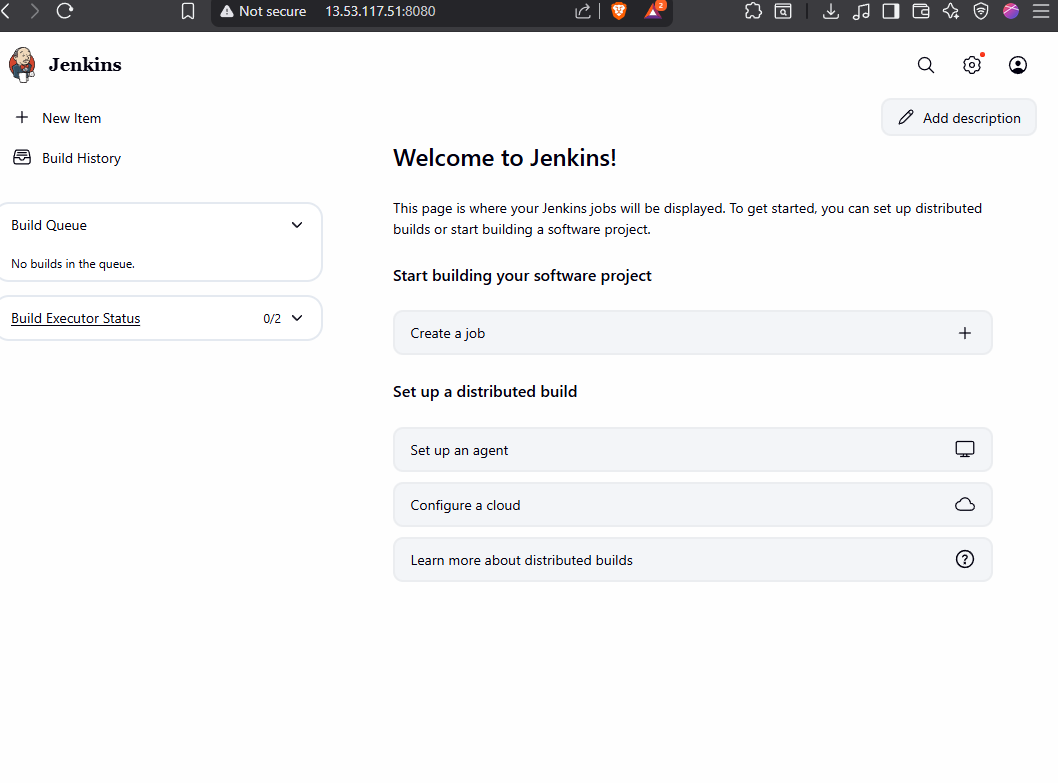
You're now ready to use Jenkins!
Job Types: Freestyle vs Pipeline as Code
Freestyle Jobs
Freestyle jobs are the classic Jenkins job type:
- Graphical interface: Click to create a job and fill out forms
- Simple configuration: User-friendly UI for basic tasks
- Limitations: When you have many jobs to connect:
- Fetch code (Job 1)
- Build code (Job 2)
- Run tests (Job 3)
- Deploy (Job 4)
- Must manually connect all jobs together
Problems with Freestyle
- Difficult to replicate pipelines across projects
- Hard to version control (configuration is in Jenkins, not in code)
- Not scalable for complex workflows
Pipeline as Code
Modern Jenkins uses Pipeline as Code (written in Groovy):
- Define the entire pipeline in a script
- Version control everything (store in Git)
- Easy to replicate and share
- Follows DevOps principle: "Everything as Code"
Benefits:
- Reproducible across projects
- Version controlled like regular code
- Easy to review and modify
- Recommended for modern CI/CD workflows