Build a Chatbot with Amazon Lex
Project Link: View Project
Author: Duc Thai
Email: ducthai060501@gmail.com
Build a Chatbot with Amazon Lex
Introducing Today's Project!
What is Amazon Lex?
Amazon Lex is a fully managed artificial intelligence service from AWS that makes it easy to build conversational interfaces, such as chatbots, using voice and text. Lex provides advanced natural language understanding (NLU) and automatic speech recognition (ASR), allowing developers to design chatbots that can accurately understand, process, and respond to user inputs.
With Amazon Lex, you can define intents (user goals), utterances (example phrases), and slot types (information to collect), and connect your bot to backend services like AWS Lambda for custom logic. Lex is used for building applications like customer service bots, virtual assistants, and interactive voice response (IVR) systems, and integrates easily with popular platforms and messaging services.
More details
Amazon Lex simplifies chatbot development by automating the hardest parts of building a conversational AI:
1. Natural Language Processing (NLP):
Lex uses powerful pre-trained models so you only need to provide 10–20 example user phrases and define the info your bot needs. It generates training data, understands user text/speech, and extracts key details automatically—no deep ML expertise required!
2. Dialog Management:
Instead of custom code, you simply define what user info needs to be remembered, set up prompts, plan conversation flow, and Lex handles tracking what’s been said, asking follow-ups, and recovering from misunderstandings (like a skilled waiter).
3. Integration:
Lex makes it easy to hook your bot up to backend systems, test your bot, and deploy it securely at scale.
Bottom line:
What used to take months and require experts in ML and conversation design, Amazon Lex reduces to a few hours and some point-and-click configuration—making chatbot building accessible, fast, and cost-effective!
How I used Amazon Lex in this project
Services I used were:
- Amazon Lex: For building, configuring, and deploying the chatbot.
- IAM (Identity and Access Management): For managing permissions and roles so Lex and Lambda could interact securely.
Key concepts I learnt include:
- Intents: Defining specific user goals or actions that the chatbot can handle.
- Utterances: Teaching the chatbot example phrases users might say for each intent.
- FallbackIntent: Customizing responses when the chatbot doesn’t understand the user.
- Intent Confidence Threshold: Setting minimum confidence for the bot to proceed with a response.
- Initial Responses: Introducing conversational flow by greeting and confirming at the start of each intent.
- Response Variations: Making chatbot answers more human-like and dynamic.
- Permissions/Roles: Granting the chatbot access to AWS services securely.
One thing I didn't expect was...
One thing I didn't expect in this project was how well Amazon Lex is able to recognize and match utterances that I didn’t explicitly define. I was surprised that phrases like “Hiya” and “How are you?”—even though not directly listed—were still successfully matched to my bot’s greeting intent. This showed me how powerful Lex’s built-in machine learning and natural language understanding capabilities are. It goes beyond just exact phrase matching, making conversations feel much smoother and more intuitive than I anticipated!
This project took me...
This project took me approximately 30 minutes to complete. The most challenging part was configuring the intents and making sure my chatbot could correctly understand and handle various user utterances—including those I hadn’t explicitly defined! It required experimenting with different phrases and tweaking my bot’s confidence threshold and fallback responses to get everything working smoothly.
It was most rewarding to see my chatbot respond in a friendly and human-like way, especially after customizing the initial and fallback responses. Watching my bot handle real conversation scenarios and provide helpful, engaging answers made all the effort worthwhile!
Setting up a Lex chatbot
I created my chatbot from scratch with Amazon Lex, and setting it up took me just 10 minutes. The process was fast and user-friendly—thanks to the streamlined tools and templates Amazon Lex provides for conversational AI!
While creating my chatbot, I gave my chatbot basic Amazon Lex permissions because it needs authorization to call relevant AWS services on my behalf. When setting up the chatbot, I created a role with these permissions so Lex can manage conversations and, in future steps, integrate with other services like AWS Lambda.
This setup lets my chatbot securely run backend logic—such as retrieving data, processing requests, or triggering events—making it possible to build more useful and interactive features as I extend the project.
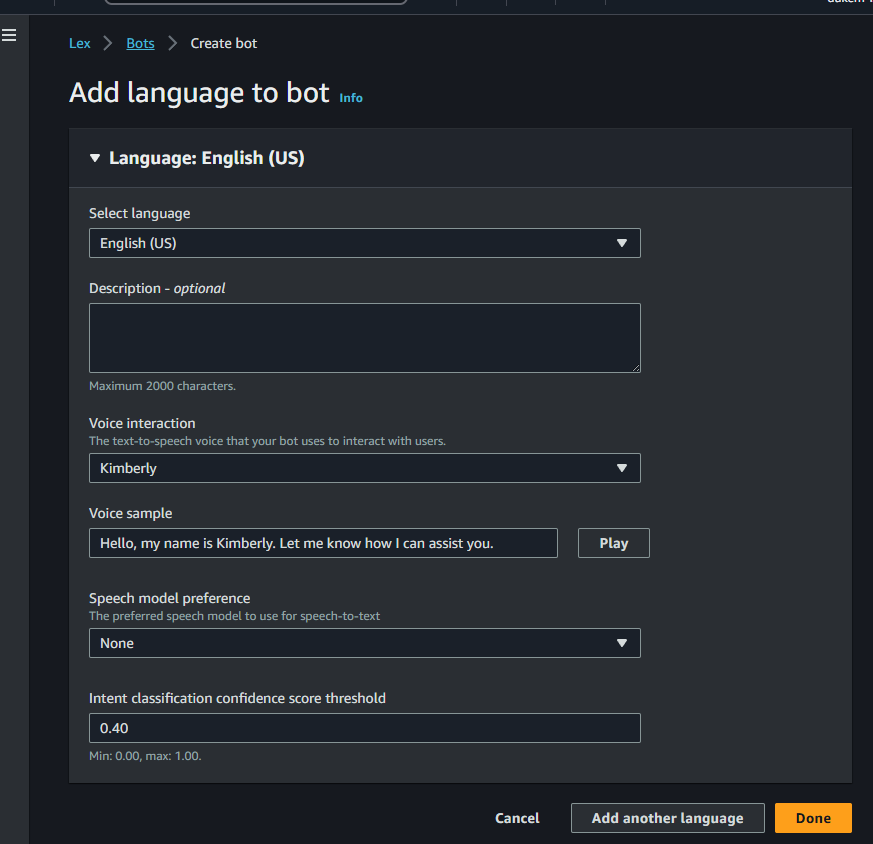
In terms of the intent classification confidence score, I kept the default value of 0.40. This means chatbot will only respond to user input if it is at least 40% confident about the user's intent. If the user's message is unclear and the confidence score is below the threshold (e.g., below 0.4), Lex will not attempt to fulfill the request and will typically prompt the user for clarification or display an error message.
This helps prevent my chatbot from acting on uncertain or ambiguous requests, making conversations clearer and reducing errors.
Intents
Intents are the goals or actions a user wants to accomplish during a conversation with a chatbot. For example, an intent could be checking a bank account balance, booking a flight, or ordering food.
In Amazon Lex, you build your chatbot by defining and organizing different intents. By setting up separate intents for different types of requests, one chatbot can efficiently handle a variety of related tasks or queries, such as greeting users, providing account information, or helping book appointments—all within the same conversation flow. This makes your chatbot flexible and capable of serving multiple user needs.
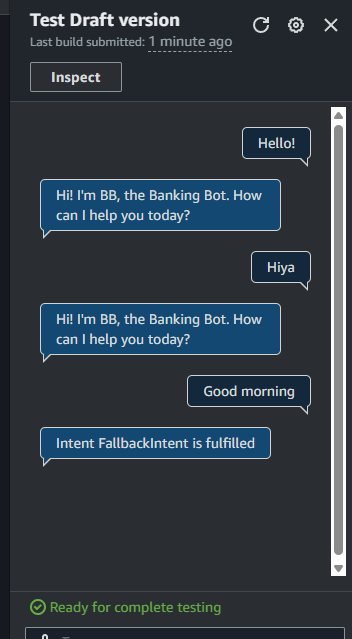
WelcomeIntent is designed to greet users when they initiate a conversation with the chatbot. When a user says something like “Hi,” “Hello,” “I need help,” or “Can you help me?”, the bot recognizes these as welcome utterances and triggers this intent.
Once WelcomeIntent is activated and fulfilled, the bot responds with the closing message:
"Hi! I'm BB, the Banking Bot. How can I help you today?"
So, WelcomeIntent enables the bot to handle greetings and welcome users into a friendly, helpful banking conversation.
FallbackIntent
My chatbot could successfully understand and respond to greetings that were either exactly as defined in my Utterances or were similar enough for Amazon Lex’s ML models to match, such as:
- "Help me"
- "Hiya"
- "How are you"
These were recognized and triggered my WelcomeIntent as expected.
However, some phrases did not work—for example:
- "Good morning"
This phrase was not matched to any custom intent and resulted in an Intent FallbackIntent being triggered. This means Amazon Lex wasn’t confident enough to associate "Good morning" with my defined greeting utterances, showing that the matching relies both on what you specify and how close a user’s input is to those patterns.
To improve recognition, I could add more greeting examples like "Good morning" or "Greetings" to the list of utterances for my WelcomeIntent.
My Lex chatbot returned the error message "Intent FallbackIntent is fulfilled" when I entered a greeting like "Good morning" that was not included in my defined utterances for the WelcomeIntent.
This error message occurred because Amazon Lex could not confidently match my input to any of the existing intents. When Lex cannot understand or classify the user's input based on its training examples and confidence threshold, it triggers the FallbackIntent as a catch-all response. This means Lex didn't recognize my greeting as something the bot was programmed to handle, so it returned the fallback error instead.
Configuring FallbackIntent
FallbackIntent is a default intent in every chatbot that gets triggered when the chatbot cannot confidently match the user’s input to any of the defined intents.
This usually happens when:
- The user says something unfamiliar or unexpected
- Their request does not closely resemble any sample utterances you provided
- The intent classification confidence score falls below the set threshold
In these situations, FallbackIntent provides a way for the chatbot to handle confusion gracefully and prompt the user to clarify or rephrase their message.
I wanted to configure FallbackIntent because the default message (“Intent FallbackIntent is fulfilled”) can be confusing for users. By re-phrasing the fallback message, I can make it clearer and more friendly when the chatbot doesn’t understand a request. This helps guide users to rephrase or clarify what they want, improving the overall experience and making the chatbot more approachable and supportive.
Variations
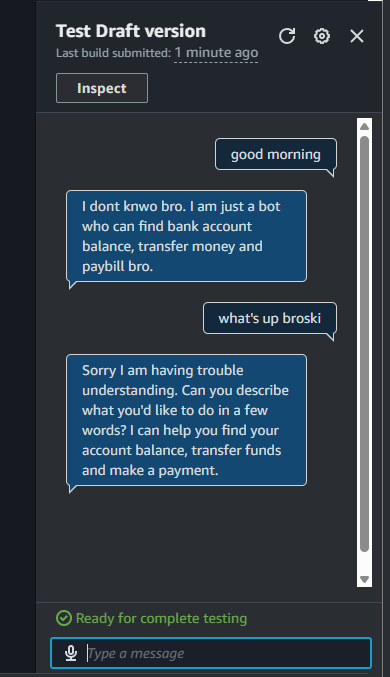
To configure FallbackIntent in my chatbot, I updated the closing response by going to the Message group and editing the message panel. I added clear, user-friendly messages so users know the bot didn’t understand their request.
I also included some variations, such as:
- “Sorry, I didn’t quite catch that. Could you please rephrase?”
- “Oops, I’m not sure what you mean. Can you try asking differently?”
- “I’m here to help! Please ask your question again.”
Adding multiple variations makes responses feel less repetitive and more natural, improving the overall user experience when the chatbot gets confused or can’t match an intent.
I also added variations! They are different ways your chatbot can respond to the same user request. For an end user, this means:
- Each time they say something that triggers an intent (like asking for help or greeting the bot), the chatbot can reply with different messages, making the conversation feel more natural and less repetitive.
- Variations help the chatbot sound more friendly and human by mixing up its responses instead of sending the exact same message every time.
- If a user asks for help multiple times, for example, they might hear responses like “How can I assist you today?”, “What can I help you with?”, or “I’m here to help—tell me what you need.”
In short, adding variations improves the overall user experience, keeps conversations interesting, and makes the bot more engaging!
Initial Responses
My chatbot sends an initial response for intents where I want to greet the user or confirm what the bot is about to do—right at the start of the intent's flow. This response is delivered as soon as Lex recognizes the user's intent, even before asking for any additional information or moving on with the conversation.
Setting up initial responses is useful because it gives users a clear signal about what’s coming next. For example:
- If the bot is about to help with a task, the initial response could be, “Great! I can help you with that. I just need a few details first.”
- For the greeting intent, it might say, “Hi! Welcome to BankerBot. How can I assist you today?”
By adding initial responses, my BankerBot feels more conversational and natural—making the user experience smoother and friendlier, just like talking to a real person.
The initial response messages I set up are:
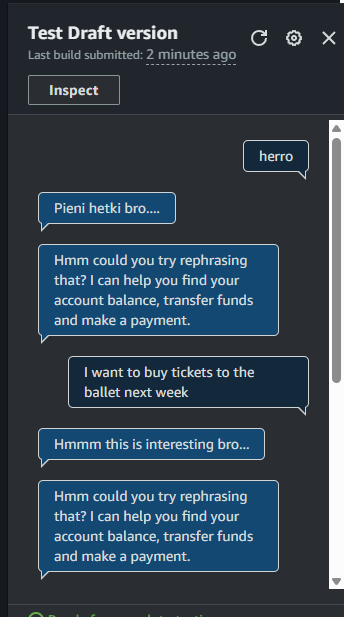
- “Hmmm this is interesting bro...”
- “One moment...”
For the user, this means that as soon as the chatbot recognizes their intent, it immediately replies with a friendly, conversational message before asking for more details or taking further action. These initial responses help the conversation feel natural, let the user know their request is being processed, and make the bot sound more engaging and human-like.