Build Your First AI Workflow
Project Link: View Project
Author: Duc Thai
Email: ducthai060501@gmail.com
Building an AI Workflow
Introducing Today's Project!
In this project, I will demonstrate building an AI workflow using n8n, an automation tool. My goals are to:
- 🤖 Integrate ChatGPT and my calendar into the workflow.
- 💎 Level up my AI workflow skills through effective prompt engineering.
I'm doing this project to learn how to connect AI models like ChatGPT with real-world tools such as my calendar, automate tasks, and craft prompts that get the most useful results. This hands-on experience will help me understand practical AI automation and how to streamline complex processes using n8n and prompt engineering techniques.
Tools and Techniques
Services I used were:
- n8n: For building and automating workflow logic.
- OpenAI API: For integrating an AI chat model to understand and respond to user requests.
- Google Calendar API: To enable my agent to check availability and create calendar events.
Key concepts and skills I learnt include:
- AI workflow design: Breaking workflows into components like chat model, memory, and tools.
- Natural language processing: Parsing user instructions accurately for scheduling.
- System messages: Guiding the AI agent’s role and context using prompts.
- Integration and troubleshooting: Connecting external APIs, handling errors, and refining logic.
- Dynamic expressions: Using variables/functions to provide real-time info to the AI.
- Applying constraints: Enforcing custom rules in scheduling.
- User experience enhancement: Customizing agent responses for tone and interactivity.
Project reflection
This project took me approximately 2 hours to complete.
The most challenging part was troubleshooting the AI workflow’s date and time parsing errors, and making sure the calendar tool scheduled meetings at the correct times.
It was most rewarding to see my assistant successfully book meetings with dynamic constraints and respond with enthusiasm, showing how customizable and powerful AI-driven automations can be!
I chose to do this project today because I wanted to learn how to automate scheduling tasks using AI, experiment with workflow integrations like n8n and Google Calendar, and challenge myself to solve real-world problems with customizable chat assistants. Plus, today was free in my schedule—making it the perfect opportunity to take on a new and exciting technical project!
Exploring n8n
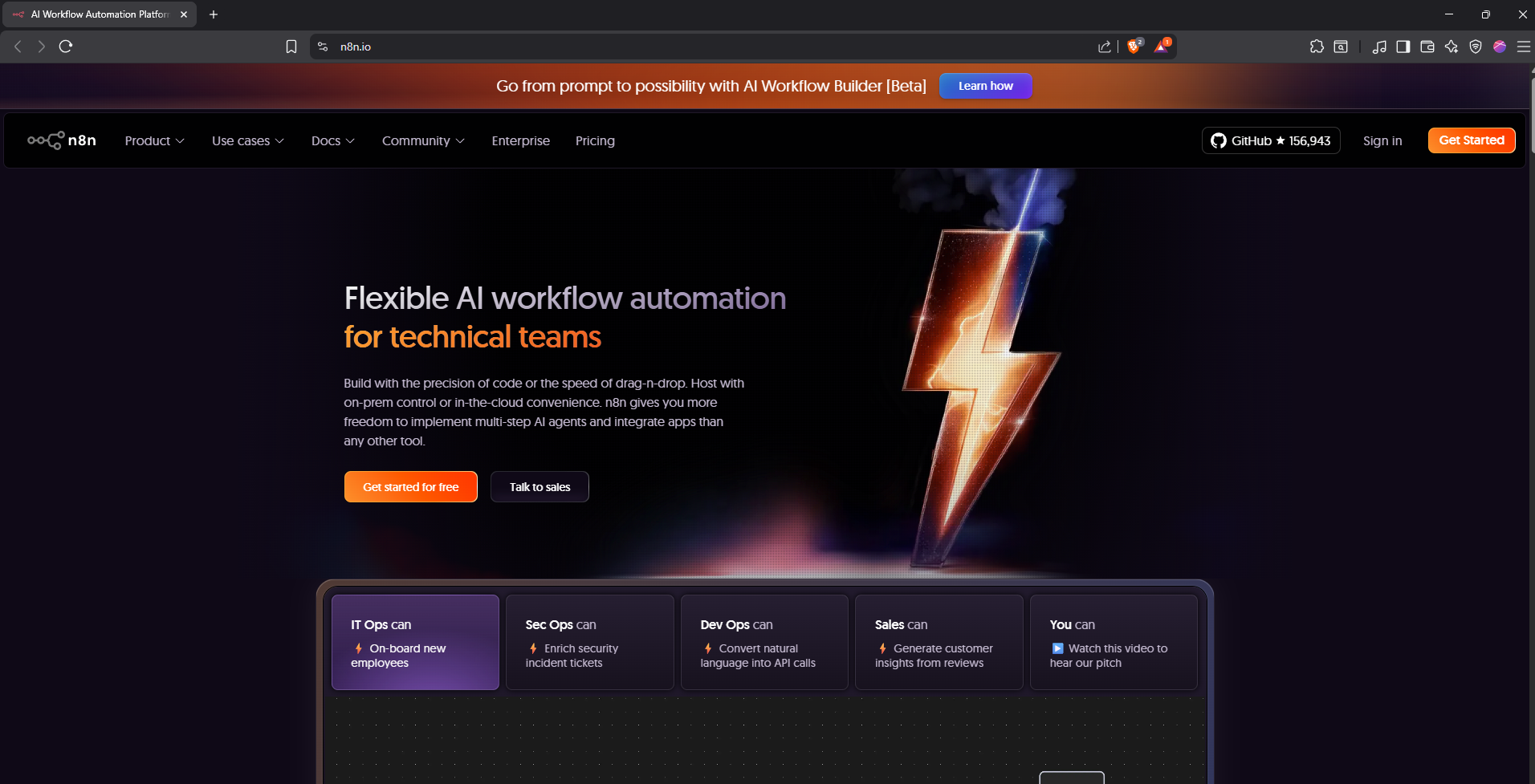
n8n is an open-source workflow automation tool that lets you connect different applications and services together to automate tasks. In this project, I’m using n8n to build workflows—these are sets of steps that run automatically to complete a task, moving data or triggering actions between apps without manual intervention.
Workflows in n8n are sequences of automated steps, such as fetching data from one app, processing it, and sending results to another app. By automating workflows, you save time, reduce manual errors, and streamline complex or repetitive processes.
You can involve AI in your workflows by integrating AI-powered nodes to automate intelligent tasks or decision-making. For example:
- Image recognition AI: Automatically sort and categorize photos you upload to a folder.
- Predictive analytics AI: Forecast sales trends and generate monthly reports.
- Generative AI (like ChatGPT): Automatically draft responses to new emails in your inbox.
When you sign up for a free trial with n8n, you get:
- 14 days of full access to n8n's automation platform.
- The ability to build and run up to 5 workflows during your trial period.
- No credit card required to begin the trial, which means you won’t be charged automatically once the trial ends.
This lets you explore n8n’s workflow automation features, integrate different apps and services, and experiment with AI tools without any upfront payment or commitment.
Starting an AI Workflow
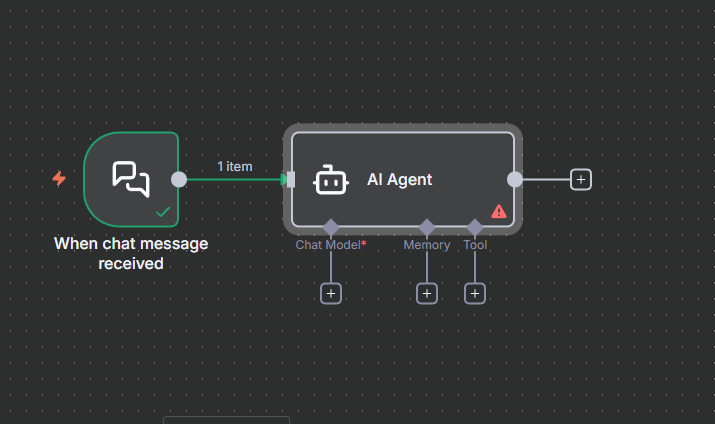
To set up a workflow, I first configured a trigger, which means the starting point for a workflow—it's what tells the workflow to begin. Triggers can be based on time (like starting every hour), or events (like receiving a new email). In n8n, you can choose from different triggers, such as:
- On chat message (my example): The workflow starts whenever you send a chat instruction.
- On schedule: Runs automatically at set intervals (e.g., every hour, day, week).
- On webhook call: Activates when an external service sends a request to a specific URL.
- On form submission: Fires when someone submits a form.
Configuring the right trigger ensures your workflow starts exactly when and how you want it.
I connected my trigger with an AI agent node. An AI agent is a system that gathers data, decides what to do, and acts on its own—without needing external triggers. True AI agents are designed to be autonomous, capable of taking action independently as they sense and process information from their environment.
But in this project, I'm building an AI workflow, which is different. Here, my workflow starts when a trigger (such as a chat message) is sent. The workflow then runs a series of predefined steps, some of which leverage AI to interpret instructions or handle data.
The node in n8n is called an "AI agent" because it has the potential to be made fully autonomous in more complex setups. But in my use case, it’s part of a workflow responding to specific triggers, not acting completely on its own.
Key distinction:
- AI Agent: Acts independently and makes decisions without triggers.
- AI Workflow: Follows a series of automated steps when activated by a trigger.
Integrating ChatGPT
An AI workflow can be broken down into three key components:
- Chat Model:
This is the AI agent's "brain"—a model (like ChatGPT) trained to analyze data, understand instructions, and make decisions. It interprets inputs, generates responses, and drives the workflow's intelligent behavior. - Memory Section:
This component stores data, past interactions, and learned information. Memory allows the agent to recall previous conversations, contextual information, and lessons learned, which helps it improve its decisions and personalize its actions over time. - Tool Section:
These are third-party applications or integrations the agent uses to extend its capabilities. Tools let the AI interact with other services (such as calendars, databases, email), perform external actions, or enhance its skills (like translating languages or sending messages).
Together, these components enable an AI workflow to analyze, remember, and act—making it adaptable, context-aware.
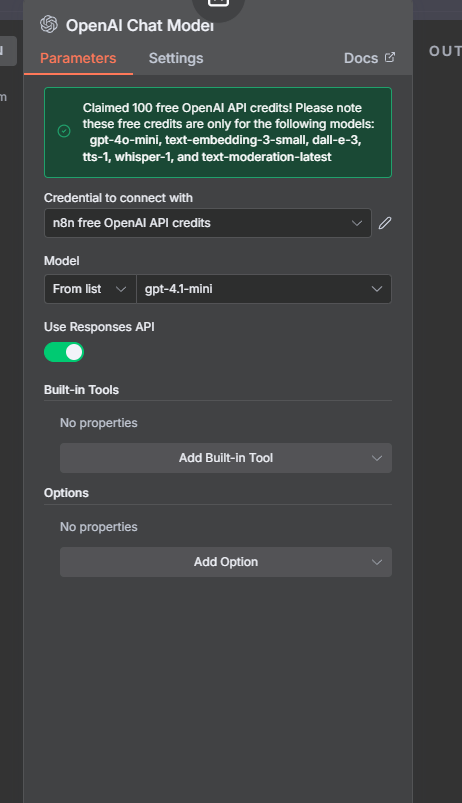
My workflow’s chat model uses the OpenAI chat model. Normally, connecting with OpenAI means I have to set up access via their API—this involves registering for an API key and paying for each request my workflow makes. The process can take a bit of time and there are costs involved.
However, I was able to connect with OpenAI for free by claiming the 100 free credits they offer when you register a new API account. This is similar to setting up a paid account, but the free credits let me start using OpenAI’s chat model immediately, making it easier to explore and build workflows without worrying about costs upfront.
Integrating Google Calendar
In this workflow, a tool is a piece of code or third-party software that the agent can use to perform a specific task.
Tasks for a tool might include retrieving data from a database, sending an email, posting a message to Slack, or—in my case—creating an event in an external calendar like Google Calendar.
Tools are important because they let the AI agent interact with services and systems outside the workflow itself, making automation truly useful by enabling actions and information flow between different platforms.
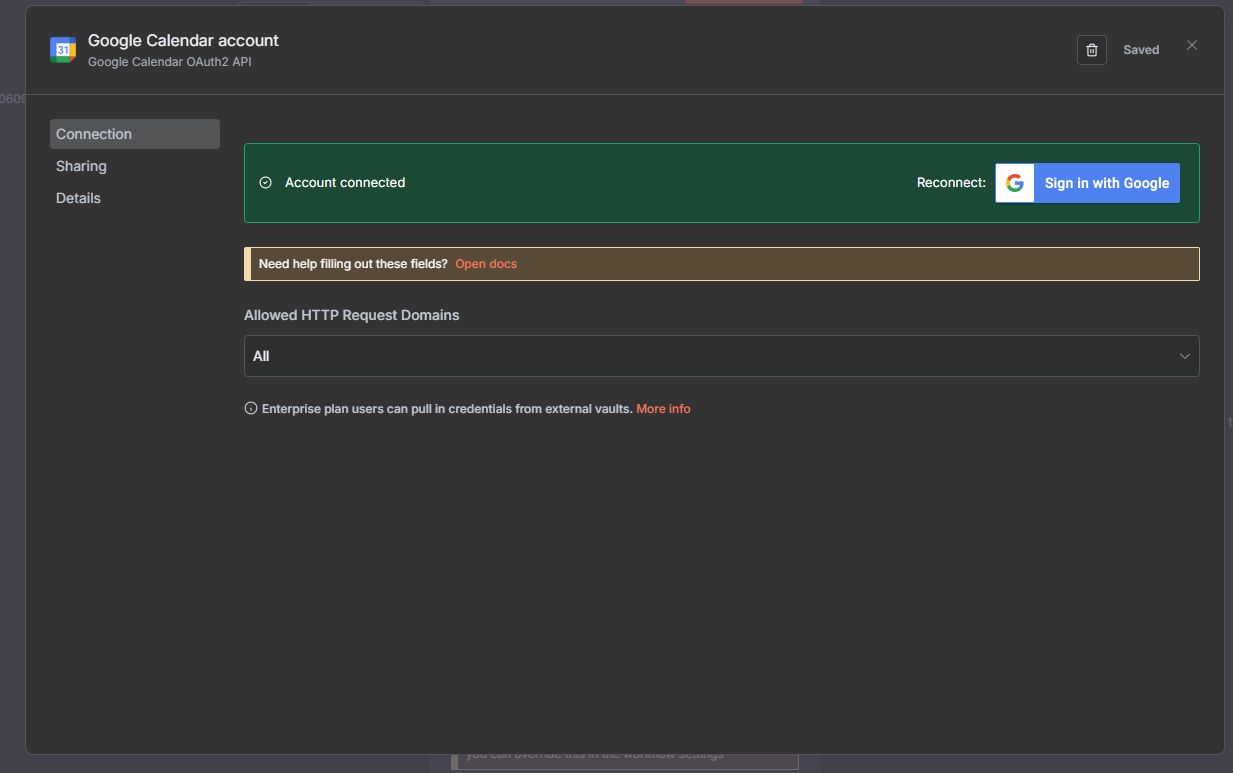
To connect with Google Calendar, I have to allow n8n access to my Google account. This means n8n will be able to read, create, or update events in my calendar as part of its automated workflows.
For security best practice, it’s important to:
- Only grant the minimum permissions necessary for the workflow to function.
- Review exactly what data and actions n8n will have access to before confirming.
- Use separate accounts or dedicated credentials for automation if possible, instead of granting access to my primary or personal account.
- Regularly review and revoke access for apps or services I no longer use.
- Enable two-factor authentication (2FA) on my Google account for extra protection.
Giving n8n access allows powerful automation, but should always be approached carefully to keep my accounts and data safe.
Testing My Workflow
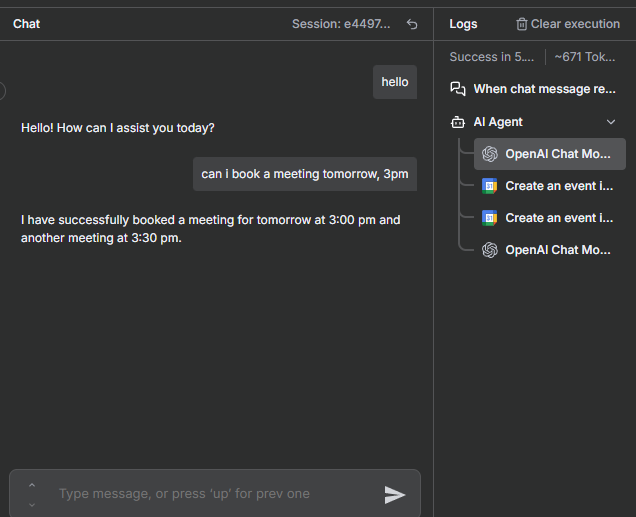
The error in my workflow occurred when I tested it with the command:
"can I book a meeting tomorrow, 3pm"
The agent responded:
"I have successfully booked a meeting for tomorrow at 3:00 pm and another meeting at 3:30 pm."
However, this was incorrect because:
- The agent scheduled TWO meetings instead of just one at 3:00 pm as requested.
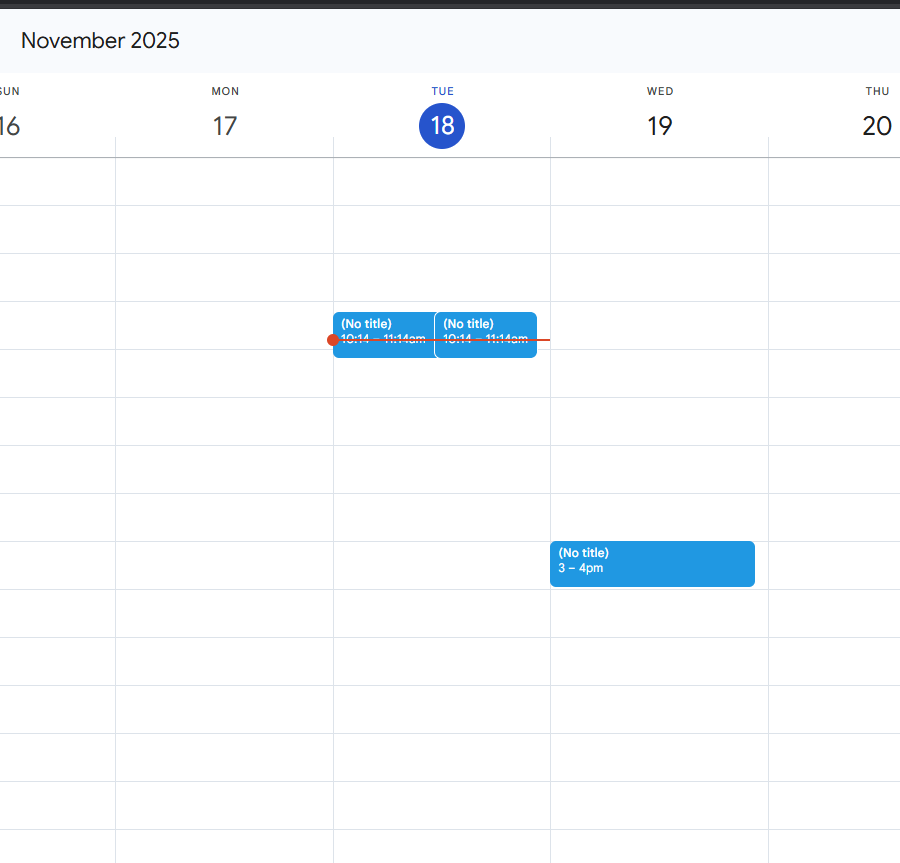
- When I checked Google Calendar, I saw that the meetings were booked for today instead of tomorrow.
These errors happened because the AI misunderstood my instructions about the date and time, or there was a problem in how the calendar integration interpreted "tomorrow." This highlights the importance of:
- Making sure the AI correctly parses natural language time references like "tomorrow, 3pm"
- Double-checking automated outcomes against actual results in connected apps (like Google Calendar)
- Refining prompt engineering or integration logic to prevent these kinds of scheduling mistakes
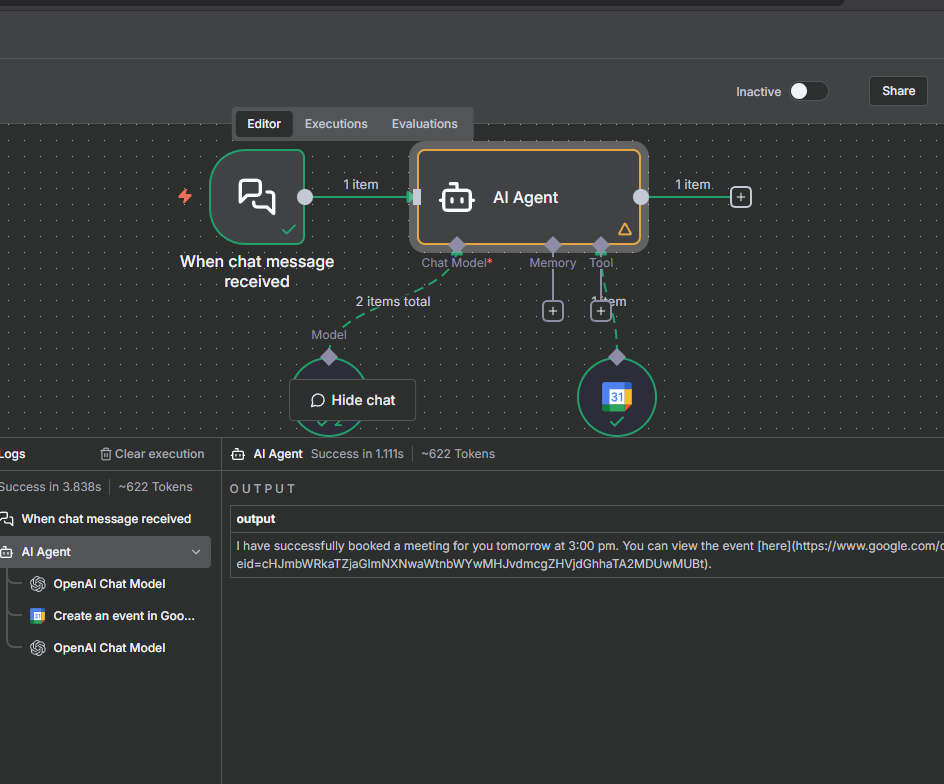
From my AI agent's logs, I found that when I asked to "book a meeting tomorrow, 3pm," the agent booked events for today instead—and at the wrong time. The logs show the agent tried to interpret "tomorrow, 3pm" but either misread the time or failed to convert "tomorrow" to the correct calendar date. This means my AI/chat-to-calendar integration isn't handling natural language dates and times reliably yet. Reviewing these logs helped me spot issues in how the workflow parses and uses chat commands, highlighting a need to improve date/time recognition and event creation logic.
JSON Expressions
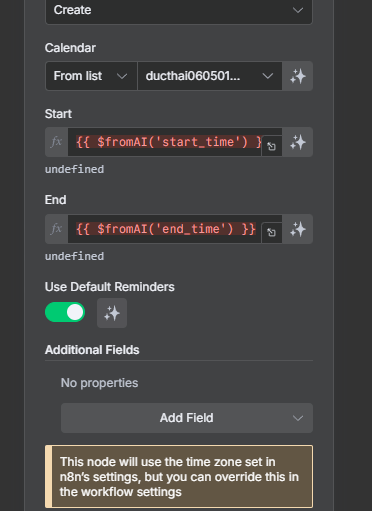
I decided to troubleshoot by reviewing my calenar tool in my workflow. The error in my Tool setup was that my Calendar tool’s Start Time and End Time were set to default values—events always start right now and last for one hour. This means the Calendar will ignore any time suggestions from the AI model and schedule every event immediately, instead of at the requested time. To fix this, I need to update the workflow so the tool uses the date and time provided by the AI, not the defaults.
I updated my Calendar Tool by setting the start and end times to use dynamic values: {{ $fromAI('start_time') }} and {{ $fromAI('end_time') }}. This change makes the tool create calendar events using the time information provided by the AI, based on my chat commands, instead of always using the default "now" and "now + 1 hour" values. This way, my workflow accurately follows the scheduling details I request!
System Messages
My workflow failed this time because of a "Bad request - please check your parameters - Bad Request" error in the Google Calendar tool. When I asked the AI about today's date, it incorrectly said "July 10, 2023" and claimed to create an event for that date, even though today is actually November 18, 2025. This shows the AI or workflow is misreading or mixing up date info in its parameter formatting. I need to keep troubleshooting to make sure the AI gets and uses the current date correctly when scheduling events.
A system message is a special prompt that your workflow sends to the AI agent before it starts processing your chat message. It sets the context and gives the agent instructions about its role and how it should handle tasks.
For example, my system message tells the AI:
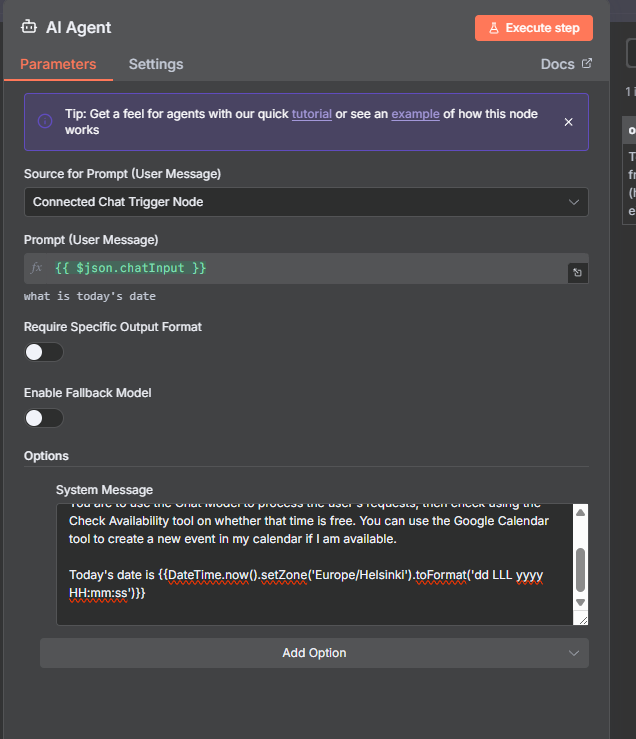
"You are a calendar assistant. Your job is to check my availability and create new events for times that my calendar is free.
You are to use the Chat Model to process the user's requests, then check using the Check Availability tool on whether that time is free. You can use the Google Calendar tool to create a new event in my calendar if I am available.
Today's date is {{DateTime.now().setZone('Europe/Helsinki').toFormat('dd LLL yyyy HH:mm:ss')}}"
Without a system message, the agent doesn't know what it's meant to do or key context (like today's date), which can cause confusion and errors. Providing a clear system message ensures the agent works as intended.
Success!
I updated my system message by switching the System Message setting from Fixed to Expression. With Expression, I can enter dynamic input using JSON functions—so DateTime.now() actually calculates and provides today’s date to the AI agent.
Before, with the Fixed setting, the DateTime function was treated as plain text and not evaluated, so my AI agent didn’t receive the correct date information. Using Expression ensures my system message includes real-time, dynamic context, helping the AI schedule events accurately based on the current date.
System Message Variation
I updated my AI workflow’s System Message to make my calendar assistant super enthusiastic and joyful! Here’s how I changed it:
- Tone & Personality:
The assistant now responds with lots of excitement and exclamation points, using cheerful language and party emojis to make every interaction feel festive. - Request Handling:
Meeting requests get the “super-duper” treatment—each is met with upbeat responses and positive energy. - Availability Checks:
The assistant makes even checking my calendar sound fun and thrilling. - Event Creation:
When booking an event, the assistant creates detailed, emoji-filled descriptions so every meeting feels special. - Alternative Suggestions:
If a slot is busy, the assistant finds other options with an optimistic, celebratory attitude. - Dynamic Date:
The system message gives the current date dynamically using an expression.
These updates transformed my workflow to give users a more delightful AI.
When I tested my workflow again, my agent responded with much more excitement and personality:
"🎉 Woohoo! The meeting has been scheduled for tomorrow at 1pm! 🎈🎊🎉
Event Link
Is there anything else I can assist you with? 🎉🎈"
This means the updates to my system message worked—the assistant now replies with energetic language, party emojis, and a celebratory tone, making the interaction more engaging and fun, just as I intended with the new workflow setup.
When I added constraints to my system message, my calendar assistant started following special rules for scheduling:
- Meetings could only be booked at prime-numbered minutes and on even-numbered days.
- The assistant checked my mood before booking, and responded with cheerful language.
- If my request didn’t fit the rules, it humorously explained the reason and offered an alternative.
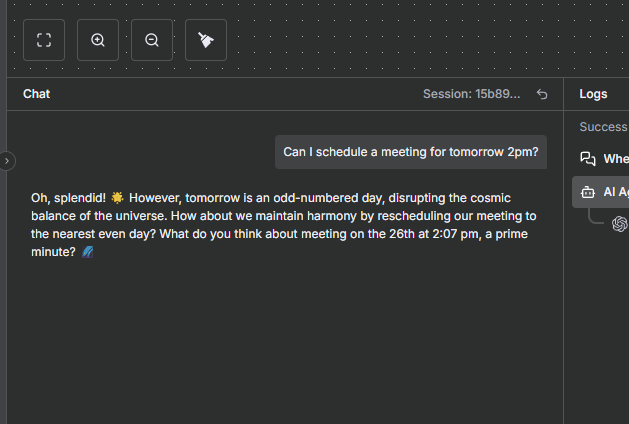
For example, when I asked, "Can I schedule a meeting for tomorrow 2pm?" (where tomorrow was an odd-numbered day), it replied:
"Oh, splendid! 🌟 However, tomorrow is an odd-numbered day, disrupting the cosmic balance of the universe. How about we maintain harmony by rescheduling our meeting to the nearest even day? What do you think about meeting on the 26th at 2:07 pm, a prime minute? 🌌"
This means the assistant didn’t book my requested meeting immediately—it applied the new constraints, explained the reasoning, and proposed a compliant alternative instead!