Automate Your Browser with AI Agents
Project Link: View Project
Author: Duc Thai
Email: ducthai060501@gmail.com
Introducing Today's Project!
In this project, I will demonstrate how to create AI agents using Python, pip, and UV. These agents will be able to search for information, fill out forms, explore websites, and much more. I'm doing this project to learn how to build intelligent automation tools, better understand web interaction with AI, and gain hands-on experience developing practical AI solutions using the latest Python technologies.
Tools and concepts
Services I used in this project were:
- OpenAI and Google AI Studio: For obtaining API keys and connecting to advanced AI models.
- WebUI: An open-source interface for creating and running AI browser automation agents.
- GitHub: For source code management, version control, and community support.
- Playwright: For browser automation and enabling agents to interact with websites.
- Python along with pip and uv: For setting up the development environment and managing dependencies.
Key concepts I learnt include:
- Setting up a Python development environment using virtual environments to keep dependencies organized and isolated.
- Installing and configuring WebUI, including cloning source code, dependency installation, and environment setup.
Project reflection
This project took me approximately a few hours to a full day to complete, depending on troubleshooting and experimentation with different browser configurations and prompt engineering.
The most challenging part was:
- Getting the agent to use my own browser session with my personal login data, especially dealing with issues around the BROWSER_USER_DATA setting and authentication workflows.
- Handling errors related to website complexity and agent limitations with authentication-required or bot-protected sites.
It was most rewarding to:
- Successfully automate browser tasks using AI agents and see them navigate, search, and extract information on their own.
- Learn how to write highly effective prompts that produce reliable, accurate agent results.
- Gain a deeper understanding of how browser automation works with AI, and how integrations with tools like WebUI, OpenAI, and Google AI Studio come together to build advanced workflows.
I chose to do this project today because I wanted to learn hands-on how to automate browser tasks using AI agents, explore new tools and technologies like WebUI and Playwright, and deepen my understanding of prompt engineering and browser automation. It was a great opportunity to challenge myself with a real-world project, solve practical workflow problems, and gain skills that are increasingly valuable for modern automation and AI development.
Development Environment
WebUI is an open-source interface for browser automation that helps you create AI browser agents. These agents act like smart assistants and can:
- Navigate websites and click buttons
- Fill out forms and search fields
- Extract information from web pages
- Make decisions about what to do next
To retrieve and set up WebUI’s code for use:
- Clone the code repository locally.
- Activate your Python virtual environment.
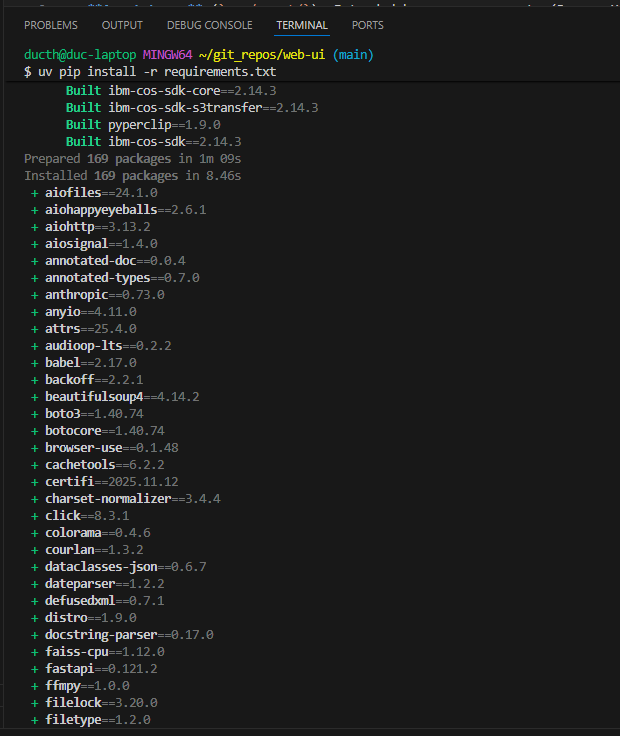
- Install the project’s Python dependencies.
- Install Playwright (for browser automation).
- Set up your
.envfile (mostly for adding API keys for AI models you want to use). Run the WebUI using:
python3 webui.py --ip 127.0.0.1 --port 7788
This process gets WebUI running on your machine so you can start building and experimenting with AI-powered browser automation agents.
The development tools I installed were Python, pip, uv, and git.
I chose uv on top of pip because:
- It downloads and installs Python packages much faster than pip.
- It handles dependency conflicts better.
- It makes installing WebUI’s requirements more efficient.
Having these tools helps streamline my development workflow and ensures I can manage packages and dependencies quickly and reliably.
A virtual environment is needed for this project because it creates an isolated workspace for my Python tools and packages. I set up a virtual environment by running a command like:
uv venv --python 3.11A virtual environment is helpful for:
- Keeping my project’s dependencies organized and separate from other projects or system-wide packages.
- Preventing version conflicts between package requirements of different projects.
- Making it easy to clean up—when I delete the environment folder, all installed packages are removed as well.
- Safeguarding my operating system by not affecting global settings.
It’s like having a dedicated workspace for this project, so I can manage, update, and remove packages without worrying about breaking other Python tools or code on my computer..
Configuring My API
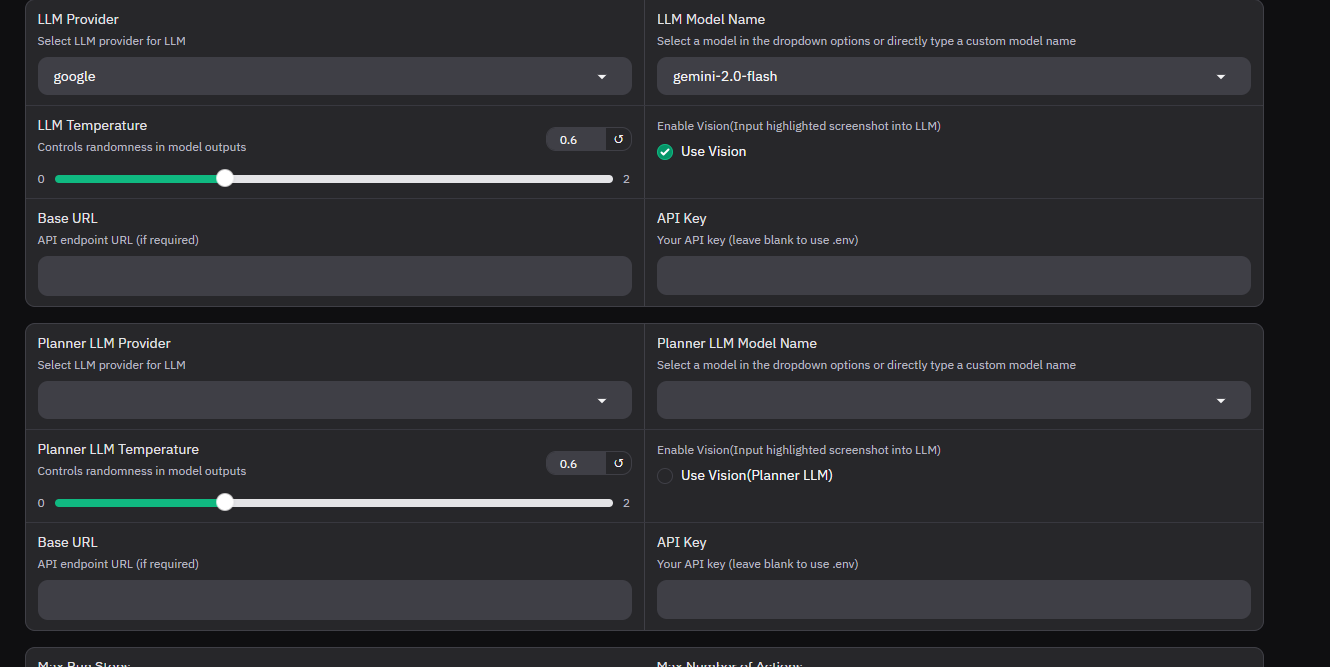
An API key is needed because it allows WebUI to securely connect to external AI services like OpenAI or Google AI. The key acts as a unique identifier that authenticates your requests and grants you access to the provider’s models and resources.
It helps WebUI by:
- Allowing it to send queries to AI models for tasks like natural language understanding, decision-making, and web automation.
- Enabling features powered by large language models and other AI tools.
- Ensuring only authorized users can access and use cloud-based AI services.
- Managing usage and billing, since providers use API keys to track how much you use their service.
Without an API key, WebUI wouldn’t be able to interact with the external AI backends, and its intelligent browser agent capabilities wouldn’t work.
I created my API key by going to both Google AI Studio and OpenAI and generating API keys from their respective dashboards. After getting my keys, I configured WebUI to use them by updating the .env file with the new keys. You can also set your API keys using WebUI’s interface under Agent Settings, which makes it easy to change or add keys directly in the app. This ensures WebUI can securely access and interact with the AI services you want to use.
Running The Agent
WebUI by default launches Chromium as its browser. Chromium is not only a browser itself but also the most popular browser engine—it’s the engine that powers Google Chrome!
My first agent’s task was:
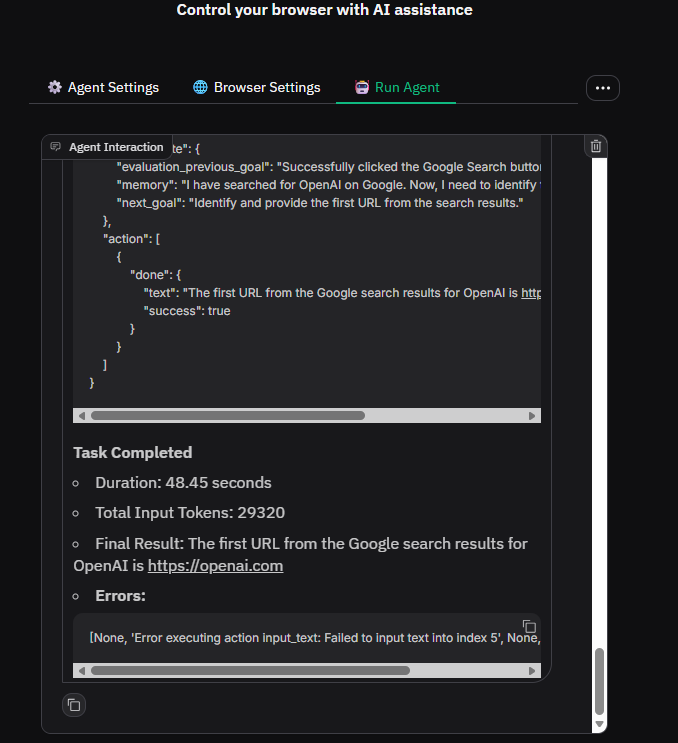
“Go to google.com and type ‘OpenAI’, click search and give me the first URL.”
WebUI uses Chromium because it’s widely supported, fast, and compatible with most modern web standards, making it ideal for browser automation and AI agent tasks.
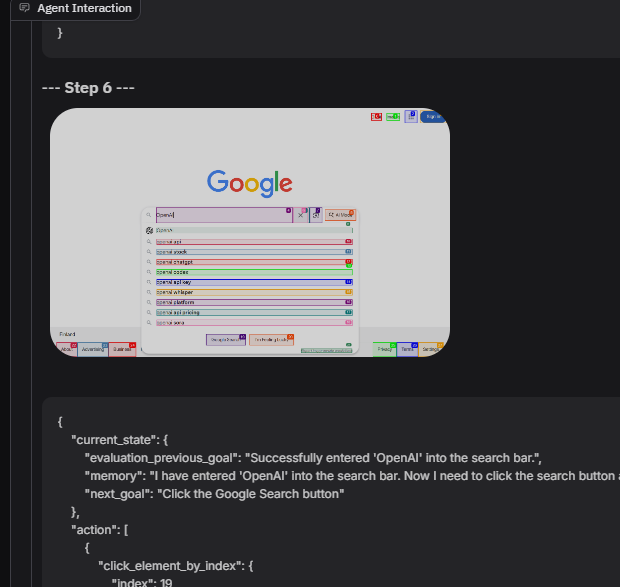
The agent interacts with the browser by using Playwright to highlight all the elements it can interact with. Behind the scenes, the agent uses an AI model to analyze each element Playwright discovers, deciding which ones it should click or use to accomplish the task.
For example, after you click "Submit Task," a new browser window opens—then the agent automatically navigates to Google.com and searches for "OpenAI," all on its own. This workflow shows how the agent combines browser automation (via Playwright) and intelligence (via the AI model) to complete tasks, making decisions about navigation, form-filling, and actions without manual intervention.
The Results tab shows:
- The results of my agent’s actions, such as the first URL it found from searching "OpenAI" on google.com.
- A video (in GIF format) of the agent’s actions, so I can visually review each step it took in the browser.
- The JSON response from my agent, which details what it found or did in a structured way.
This is helpful because it allows me to:
- Verify that the agent is correctly completing tasks and providing the expected output.
- Debug or improve my agent’s behavior by reviewing the actual browser interactions step-by-step.
- Use the structured JSON data for further automation, reporting, or integration with other tools.
Advanced Navigation
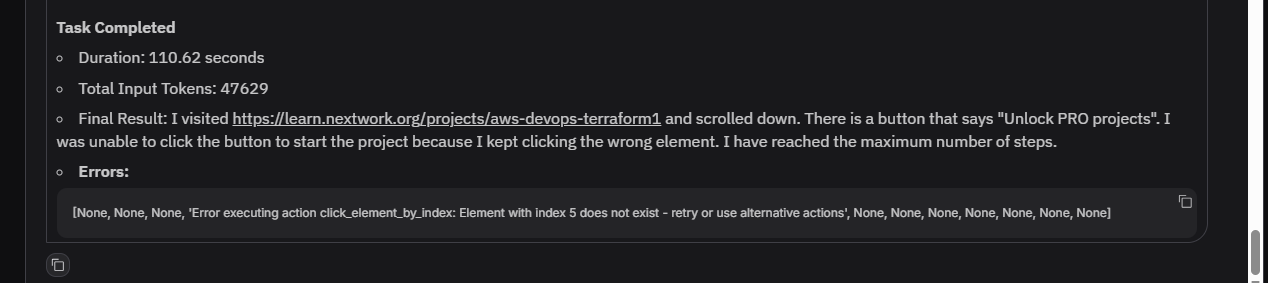
The agent discovered that accessing the project at https://learn.nextwork.org/projects/aws-devops-terraform1 requires user authentication and a PRO subscription plan to unlock the content. When instructed to visit and scroll the page, the agent reported:
- It successfully visited the page and found a button labeled "Unlock PRO projects."
- The agent was unable to click the button to start the project, repeatedly clicking the wrong element instead.
- It reached the maximum number of steps without gaining access.
This output shows the agent can navigate and identify key interactive elements, but also highlights the limitations when dealing with authentication barriers or subscription walls that require human input or appropriate credentials.
Debugging and Logs
When my agent encounters an error, three common reasons are:
Browser agents encounter errors for several common reasons:
- Unclear task description or output format:
If the task instructions do not specify exactly what kind of output is expected (such as a list of URLs, a paragraph, or an image), the agent may be confused and unable to provide a satisfactory result. - Complex website structure:
Some websites have complex, dynamic, or heavily scripted interfaces. The agent may fail to find the correct elements to interact with or may misinterpret the page layout, which leads to incomplete or incorrect actions. - Automated access is blocked:
Many sites employ measures like CAPTCHAs, login requirements, rate limiting, or bot detection to block automated agents. When the agent is blocked, it cannot complete its assigned tasks.
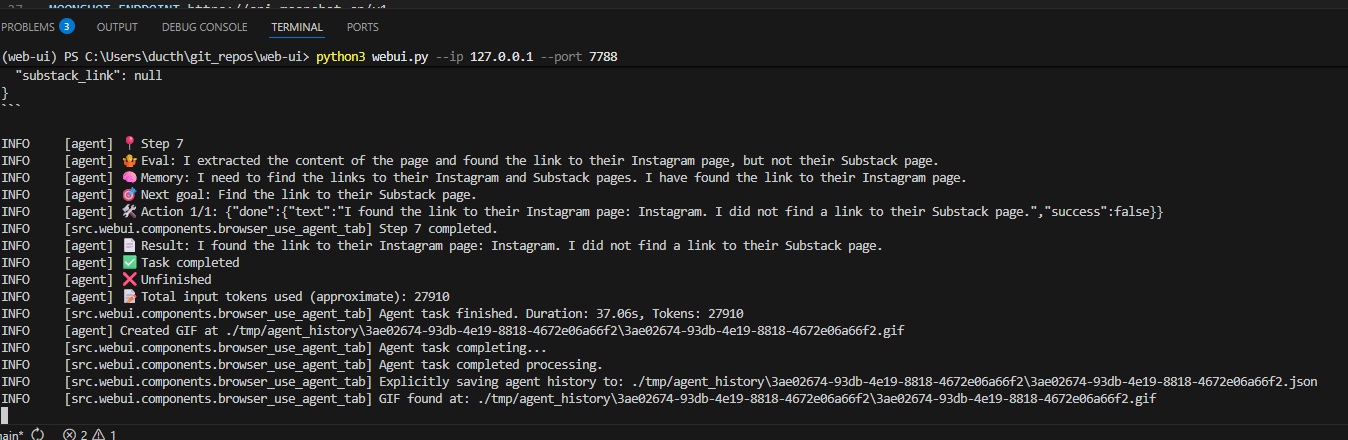
The terminal logs show a step-by-step trace of the agent’s actions and thought process as it tries to accomplish my prompt ("Go to nextwork.org and find the links to their Instagram and Substack pages."):
- The agent logs each step it takes (e.g., Step 7) and what it evaluates at each stage.
- It tracks what information it found (Instagram link discovered) and what goals remain (still searching for Substack).
- You see the agent’s internal memory, next goal, actions performed, and a summary of success or unfinished tasks.
- The logs provide key metadata, like the total input tokens used, task duration, and when the agent explicitly saves output (GIF and JSON files).
This helps me understand...
- How the agent approaches a task, including its logic, planning, and decision-making.
- Where and why the agent succeeded or failed (it found Instagram but missed Substack).
- The resources used for the task, like processing time and token usage.
Advanced Browser Configuration
Using your own browser is useful in cases where you want your agent to access websites that require your personal login or custom settings. Many sites block automated browsers like Chromium, or require multi-factor authentication, saved sessions, extensions, or cookies unique to your account. By using your own browser, you can:
- Enable the agent to interact with sites where you’re already logged in.
- Bypass login barriers, CAPTCHAs, and region restrictions.
- Benefit from browser extensions, passwords, bookmarks, and configurations you’ve set up.
- Work with platforms or services that block automation or headless browsers.
- Safely automate sensitive workflows without exposing passwords or tokens to a third-party browser.
In short, using your own browser empowers the agent to handle tasks that depend on your authenticated session or customized browsing environment.
To use my own browser in WebUI, I updated the .env file with the following configuration settings:
- BROWSER_PATH
This setting tells WebUI where to find the browser executable on my computer (for example, the path tochrome.exeorchromefor Google Chrome). - BROWSER_USER_DATA
This setting points to the directory where my browser stores user profile data (such as bookmarks, history, cookies, and login information). By specifying this location, WebUI can access my existing browser profile, enabling the agent to use my personal settings and logged-in accounts instead of starting with a fresh profile.
Updating these settings allows WebUI to launch my preferred browser with my actual browsing environment, so the agent can interact with websites as if I were using my own browser, including accessing sites that require authentication or custom configurations.
When I tested my agent with the task:
“Go to LinkedIn and search 'nextwork' 'ai' 'project'. Make sure all search terms are in double quotes. Your task is to like the first post.”
I expected the agent to start an instance of Chrome using my own user data, so I would already be logged in to LinkedIn. Although the agent did use Chrome instead of Chromium (thanks to the BROWSER_PATH setting), the Chrome instance did not have my credentials or personal user data, so the agent wasn’t logged in.
To work around this, I tried moving my user data directory to a different location and using that path in BROWSER_USER_DATA, hoping the browser engine would detect it. But, like many other developers in the WebUI GitHub issues, I found that this problem hasn’t been fully resolved yet.
Despite this limitation, the agent was able to:
- Launch Chrome with the custom BROWSER_PATH.
- Navigate to LinkedIn.