
Set Up a RAG Chatbot in Bedrock
Project Link: View Project
Author: Duc Thai
Email: ducthai060501@gmail.com
Set Up a RAG Chatbot in Bedrock
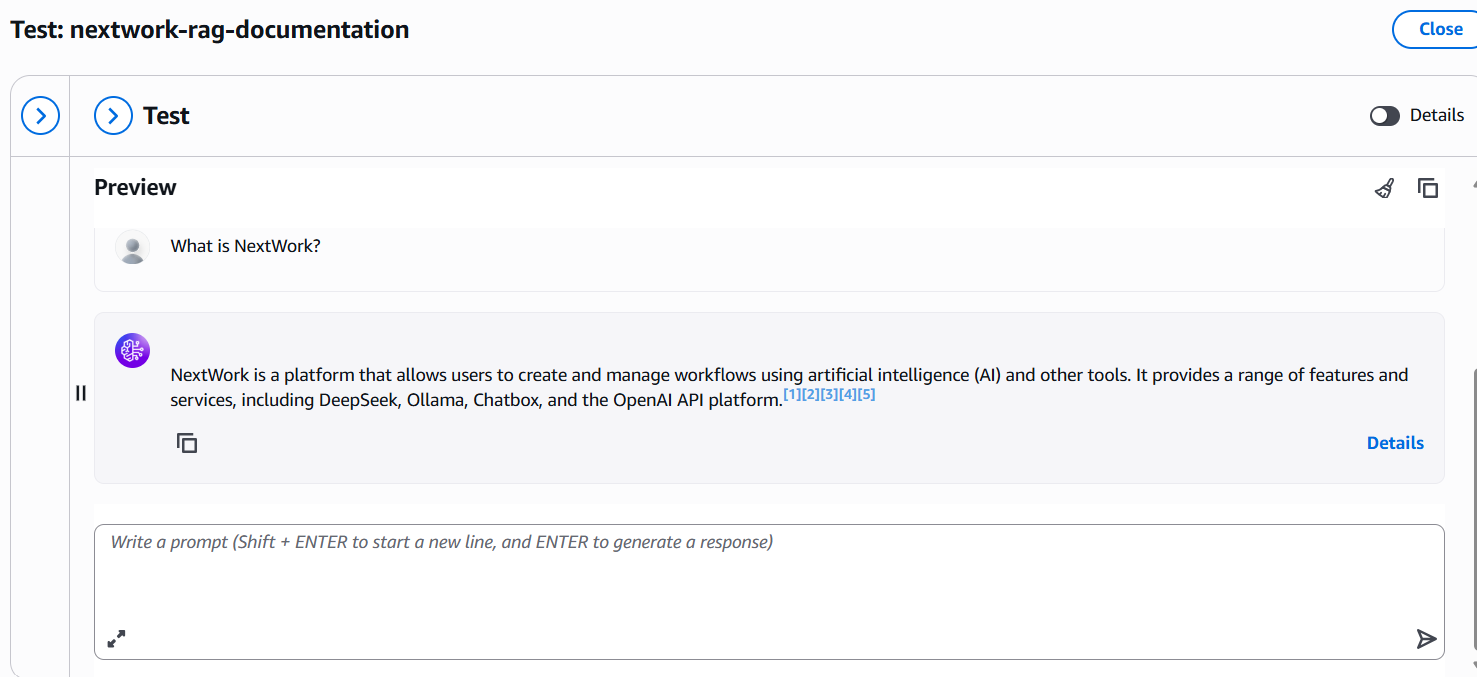
Introducing Today's Project!
RAG (Retrieval Augmented Generation) is an approach that combines retrieval of information from external sources (like documents or databases) with AI generation. This means when you ask a chatbot a question, it first searches for relevant data from your personal documents or knowledge base, and then uses AI to generate a natural, helpful response that incorporates those facts.
In this project, I will demonstrate RAG by building a chatbot that acts as an expert "me" using Amazon Bedrock. I’ll upload my own documents or notes, and set up the system so that the chatbot can search through these materials. When someone interacts with the chatbox, it retrieves the most relevant info from my collections and generates detailed, accurate answers—showing how RAG enables AI to be much more personalized and useful.
Tools and concepts
Services I used were... Key concepts I leHere are the key services and concepts I learnt in this project:
Key AWS Services:
- Amazon S3: Used for storing and retrieving project documents (PDFs).
- Amazon Bedrock: Set up as the foundation for building an AI-powered Knowledge Base and chatbot, including model selection, data syncing, and prompt customization.
- Amazon OpenSearch Serverless: Used as a vector store to hold document embeddings for fast and accurate retrieval.
- IAM (Identity and Access Management): Used to set permissions and secure access to resources like Bedrock, S3, and OpenSearch.
Core Concepts:
- Retrieval Augmented Generation (RAG): Combines generative AI with knowledge retrieval from personal documents, improving accuracy and relevance.
- Embeddings: Transforms text into numeric patterns that AI can efficiently process and compare.
- Chunking: Splits large documents into manageable pieces.
Project reflection
This project took me approximately 1 hour to complete. The most challenging part was setting up the Knowledge Base in Amazon Bedrock and properly configuring chunking, embeddings, and vector storage to make all the services work together seamlessly. It was most rewarding to see my custom AI chatbot successfully retrieve and generate accurate, contextual responses based on my own documents and projects—proving that the Retrieval Augmented Generation (RAG) pipeline was working as intended.
I chose to do this project today because I wanted to challenge myself with a hands-on learning experience in AI and AWS, test my understanding of new cloud services, and demonstrate how they can be integrated to build a real-world chatbot solution. Starting this project also allowed me to track my progress, apply what I've studied in a meaningful way, and create something useful that showcases my skills and effort.
Understanding Amazon Bedrock
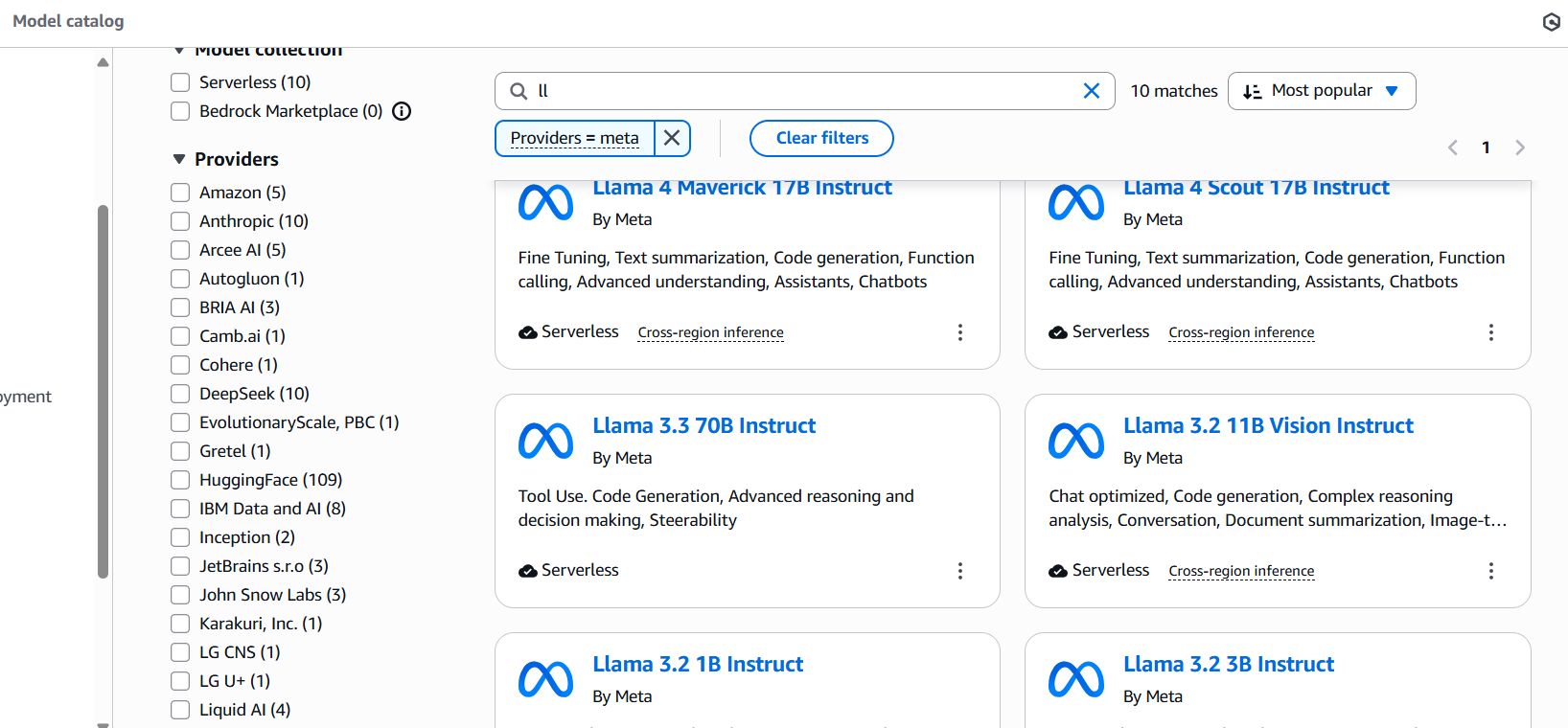
Amazon Bedrock is like an AI model marketplace—I can search for and use different foundational models from top companies like OpenAI, Anthropic, and Meta, all in one place. Bedrock makes it easy to access, compare, and deploy a variety of AI models for different applications.
I'm using Bedrock in this project so I can train AI models on my own information through RAG (Retrieval Augmented Generation). This allows me to create custom models that respond to questions based on my specific data, not just general internet knowledge. That’s how we’ll create a personalized chatbot in this project—one that can answer questions expertly using my own documents and data, powered by Bedrock’s flexible AI infrastructure.
My Knowledge Base is connected to S3 because under the knowledge base configuration, I chose “data source” and selected Amazon S3. S3 is Amazon’s scalable cloud storage service, which allows me to store all my documents, files, and datasets securely. By connecting my Knowledge Base to S3, any information I upload to the S3 bucket can be automatically retrieved by my chatbot, so it has access to the most up-to-date and relevant information when generating answers. This makes it easy to manage, organize, and update my Knowledge Base using S3.
In an S3 bucket, I uploaded 10 PDF files—these are the documents from my 10 previous projects about AI and AWS. My S3 bucket is in the same region as my Knowledge Base (Ohio, us-east-2) because keeping them in the same AWS region reduces latency, lowers data transfer costs, and ensures smooth, reliable integration between the storage and the Knowledge Base features. This setup allows my RAG-powered chatbot to quickly access and retrieve information from my project documents whenever needed.
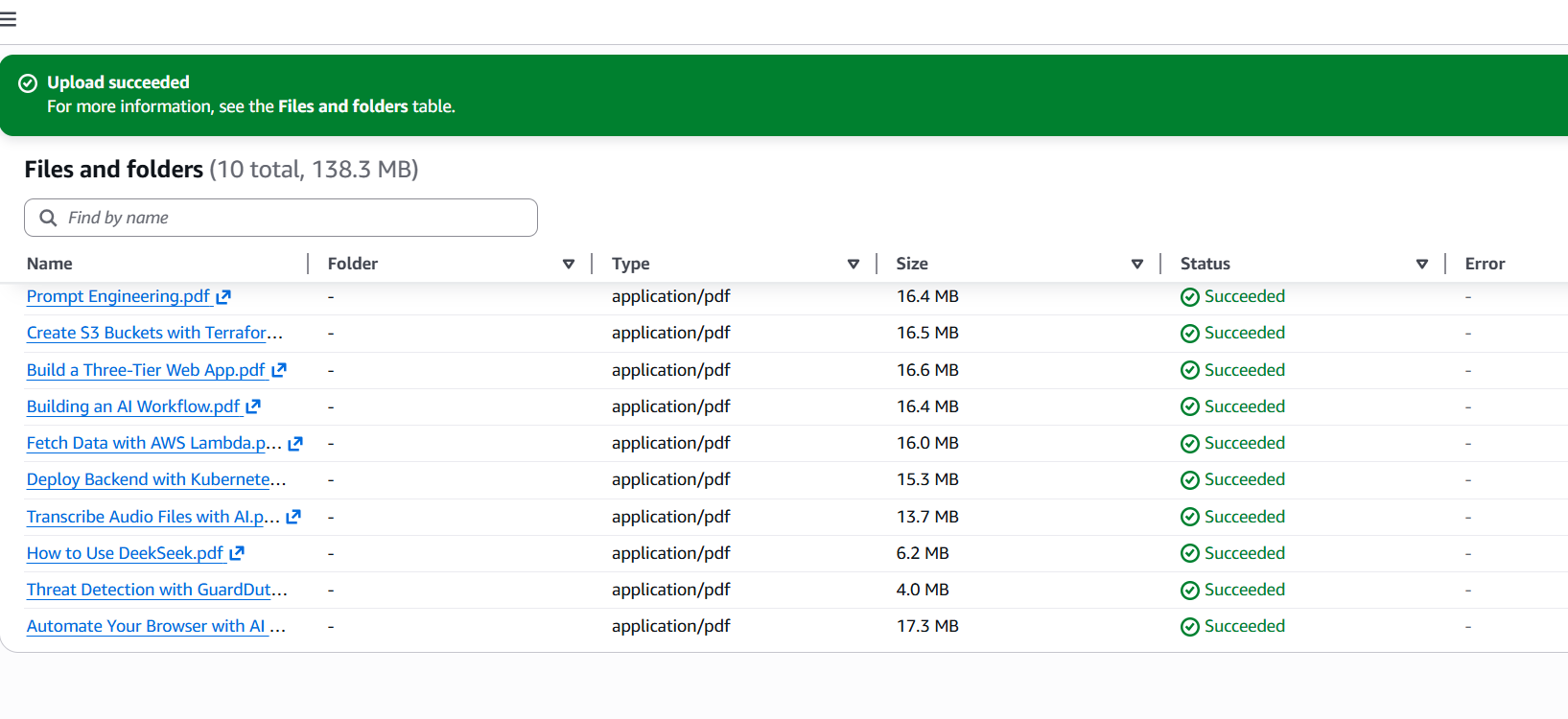
My Knowledge Base Setup
My Knowledge Base uses a vector store, which is a type of database that stores my documents’ embeddings—these are numerical patterns that represent the meaning of the text. This helps the AI quickly find the most relevant information by matching the pattern of my question with similar patterns in my stored documents.
In this case, I use Amazon OpenSearch Serverless as my vector store. OpenSearch will be the place where Bedrock stores my chunked and embedded documents from the S3 bucket. When I query my Knowledge Base, Bedrock will search inside the OpenSearch vector store to find and retrieve the most relevant chunks of text. This process makes sure the AI can deliver fast, accurate, and context-aware answers using my own data.
Embeddings are a way to convert text into number patterns (vectors) that AI models can understand and process. By turning words, sentences, or documents into these numerical representations, embeddings make it possible for the AI to search, compare, and retrieve relevant information from a large set of data.
The embedding model I'm using is Titan Text Embeddings v2 because it is Amazon’s own embeddings model. Titan Text Embeddings v2 is fast, accurate, and works especially well with other AWS services, making it a great choice for processing my Knowledge Base. Using this model helps ensure that my chatbot can quickly and reliably find and understand information from my uploaded documents, delivering better, more relevant answers.
Chunking is the process of breaking a large text into smaller, manageable paragraphs or sections. AI models have a limit on how much text they can process at one time, so chunking my documents allows the chatbot to efficiently work with information in my Knowledge Base without going over those limits.
In my Knowledge Base, chunks are set to 300 tokens, which means each segment is about 300 words or punctuation marks. This configuration ensures that the AI can quickly search, retrieve, and generate answers from my documents, while staying within processing limits and delivering accurate responses.

AI Models
AI models are important for my chatbot because they act as the brains behind the chatbox—they take the search results from my Knowledge Base and turn them into natural, human-like text responses. Without AI models, my chatbot would only return raw chunks of text from my documents (the search results) instead of helpful, conversational answers. The AI model understands the question, finds relevant information, and generates clear, tailored replies, making the chatbot much more valuable and user-friendly.
To get access to AI models in Bedrock, the process recently changed:
Previously:
You had to explicitly request access in the AWS console before you could use certain Bedrock models. This was necessary because:
- Some AI models are expensive to run, and AWS wanted to be sure you actually intended to use them.
- AWS needed to manage resource capacity in each region.
- Certain models had special rules or terms that you had to review and accept.
Updated (October 11, 2025):
The model access page has been retired. Now, access to all serverless foundation models in Bedrock is automatically enabled for your AWS account. You do not need to manually request or enable model access anymore.
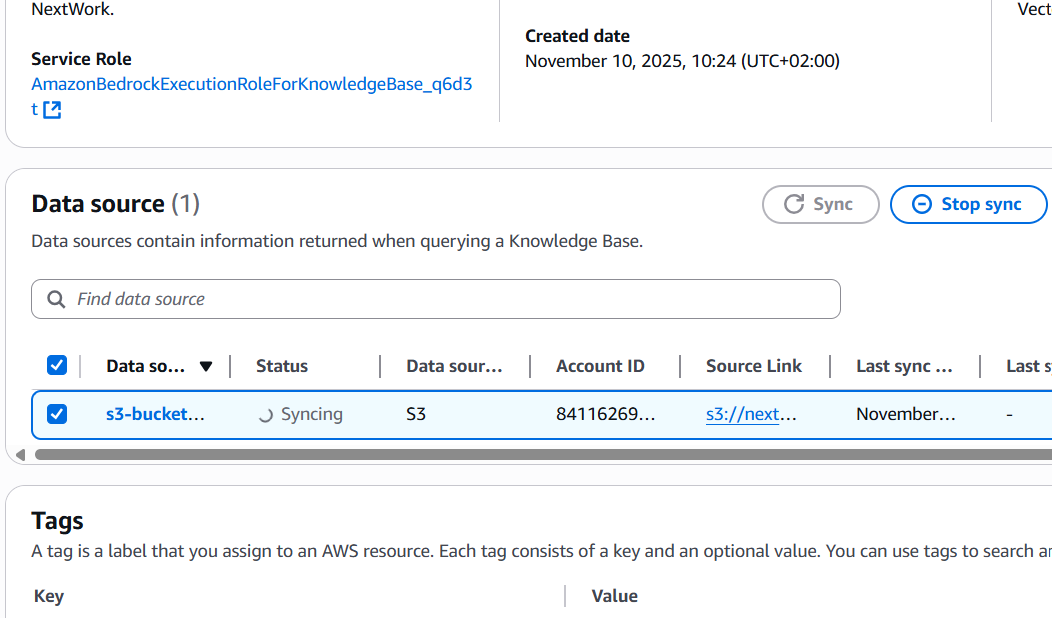
Syncing the Knowledge Base
Even though I already connected my S3 bucket when creating the Knowledge Base, I still need to sync because simply pointing the Knowledge Base to my S3 bucket doesn’t automatically load the documents into the system. Syncing is necessary to ingest, process, and index the files—this includes chunking the documents, creating embeddings, and storing them in the vector database (OpenSearch). Without syncing, the chatbot can’t access or search my documents, so the Knowledge Base would remain empty and unable to answer questions using my data. Syncing makes sure all my latest files are available, up-to-date, and ready for AI-powered retrieval and generation.
- Ingesting:
Bedrock retrieves the raw data from my data source, which in this case is your S3 bucket. This step makes sure all the documents I have uploaded are available for further processing. - Processing:
Bedrock takes the ingested documents and splits them into smaller, manageable pieces (chunking). It then converts each chunk into a numeric vector representation using embeddings. This transformation makes it possible for AI to efficiently search and compare my data. - Storing:
The processed, embedded chunks are saved in my vector store—in this project, that’s Amazon OpenSearch Serverless. This is where my Knowledge Base actually lives, allowing the chatbot to quickly retrieve relevant chunks to answer questions.
Together, these steps turn my raw documents into a structured, searchable Knowledge Base ready for AI-powered retrieval and generation.
Testing My Chatbot
To test my chatbot, the first message I sent was "hello." I used the AI model Llama 3.1 8B Instruct for this initial test. This simple greeting helped me check if the chatbot was set up correctly, responding conversationally, and able to interact using the chosen AI model.
When I asked my chatbot about making tea—a topic unrelated to my uploaded data—it responded, "Sorry, I am unable to assist you with this request." This proves that the chatbot is truly relying on my Knowledge Base and does not try to answer questions outside of the specific documents I provided. It shows that the Retrieval Augmented Generation (RAG) setup works as intended, limiting answers to just my own expert information and ignoring unrelated topics.
When you change the response generation settings to "Retrieval only: data sources," your chatbot stops using the AI model to generate human-like answers. Instead, it simply returns chunks of raw text pulled directly from your datasource—like your S3 documents or Knowledge Base—without any extra processing or rephrasing. When I tested this setting, my chatbot replied with actual portions of text from my uploaded documents, rather than conversational or summarized responses, letting me see exactly what data is being retrieved.
Upgrading My Chatbot
The source chunk setting controls how many chunks of information from your Knowledge Base the chatbot can access and use to answer each query. By increasing the number of source chunks from 5 to 10, your chatbot is able to draw from more pieces of your data when generating a response. This improves your chatbot’s answers by giving it extra context, allowing it to provide more detailed, accurate, and comprehensive responses to user questions.
I also added a custom prompt:
For context, this knowledge base contains AWS and AI projects completed by the student. The student will be asking questions about the AWS services they've used, skills they've learnt, and a recap of learnings from these projects. Where possible, always mention skills the student learnt from their projects, even if the prompt did not directly ask for it.
This custom prompt tells my chatbot to always frame its responses with project context, highlight the student’s AWS and AI skills, and recap key learnings—even if the question doesn’t specifically ask for those details. It makes the chatbot’s answers richer and more relevant, ensuring every response emphasizes the student’s growth and experience from their projects.
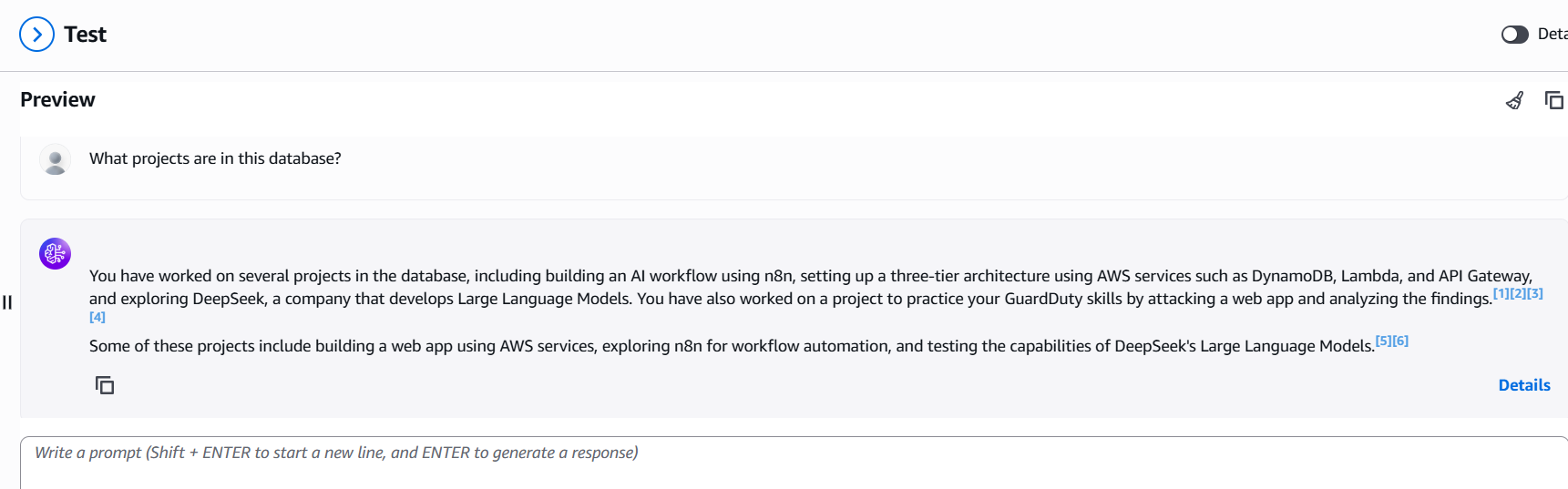
After adjusting the source chunk setting and adding a custom generation prompt, my chatbot’s first response to the question "What projects are in this database?" included noticeably more detail. The answer mentioned additional projects and offered richer context about each one, compared to before the improvements.
Before the improvements:
The chatbot’s response was brief, listing only a few project names and providing minimal information.
After the improvements:
The response became much more comprehensive, listing more projects found in the database and providing extra details, such as technologies used and the skills learned during each project, thanks to the custom prompt.
Overall, these enhancements allowed my chatbot to deliver answers that were fuller, more informative, and better aligned with my expectations for helpfulness and context.
hello