
Build a Three-Tier Web App
Project Link: View Project
Author: Duc Thai
Email: ducthai060501@gmail.com
Build a Three-Tier Web App
Introducing Today's Project!
In this project, I will demonstrate how to build a scalable web app using AWS services such as S3, CloudFront, Lambda, API Gateway, and DynamoDB. I’m doing this project to learn how these cloud tools work together to create a secure, flexible, and highly available application. By working through this setup, I’ll gain hands-on experience in modern serverless architecture, understand how to manage data and user requests efficiently, and improve my skills in deploying and scaling web apps on AWS.
Tools and concepts
Services I used were AWS Lambda (for serverless backend logic), Amazon DynamoDB (for storing user data), Amazon S3 (for hosting static website files), Amazon CloudFront (for global content delivery), and Amazon API Gateway (for exposing APIs to the frontend).
Key concepts I learnt include Lambda functions for processing backend logic, DynamoDB data modeling and partition keys, IAM roles and least-privilege access policies for secure resource access, configuring CORS for cross-origin requests, integrating API Gateway with Lambda using proxy integration, and connecting all tiers of a modern, scalable web application using AWS cloud services.
Project reflection
This project took me approximately 2 hours. The most challenging part was updating the S3 website files—my changes didn’t reflect immediately in the CloudFront distribution because of the caching mechanism. I had to create an invalidation for /script.js and /index.html in CloudFront to ensure the latest versions were served to users. It was most rewarding to see the site working end-to-end, with data fetched dynamically from DynamoDB and changes appearing instantly after cache invalidation. This gave me a deeper understanding of how CDN caching works and how to manage updates in a real-world, scalable web architecture.
I chose to do this project today because I wanted to challenge myself to learn and apply cloud architecture concepts using AWS services. I was eager to understand how different components like S3, CloudFront, Lambda, API Gateway, and DynamoDB work together to build a scalable web application. Working on this project today gave me hands-on experience and allowed me to deepen my understanding of serverless technologies and real-world deployment workflows.
Presentation tier
For the presentation tier, I will set up the following:
- Create an S3 bucket to store my website’s files.
- Upload a simple
index.htmlfile to my bucket. - Set up CloudFront to deliver my website’s content globally.
because this setup ensures that my web app is highly available, scalable, and loads quickly for users anywhere in the world. S3 provides secure, durable storage for my site’s files, while CloudFront uses a global network of edge locations to cache and serve content closer to users, reducing latency and improving the user experience. This combination is ideal for hosting static websites and forms the foundation of a modern, cloud-based presentation tier.
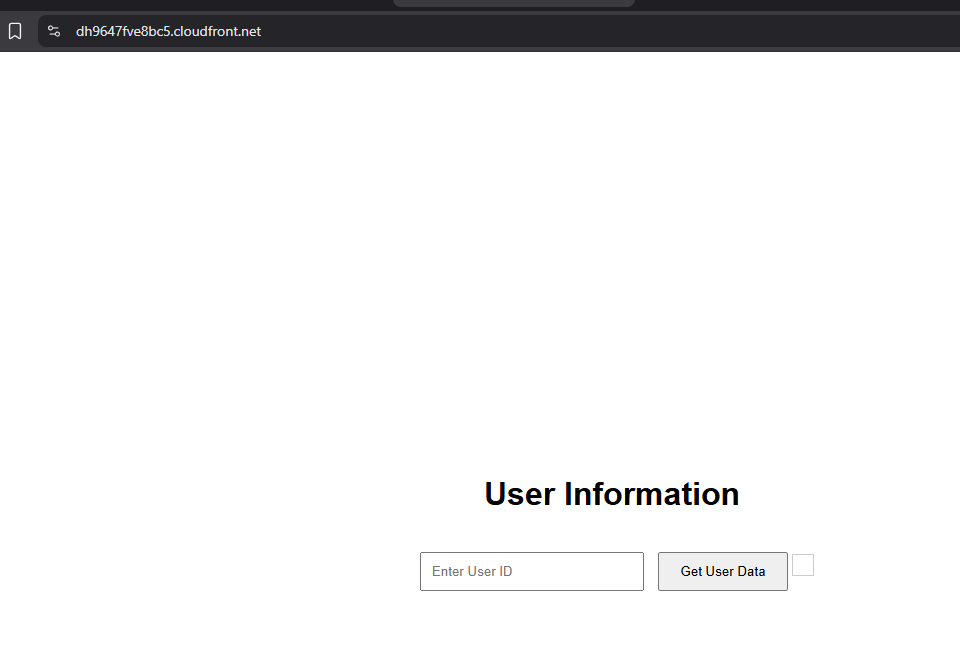
I accessed my delivered website by first making sure that my S3 bucket had the correct permissions for my CloudFront distribution to access its files. Then, I went to the CloudFront console, copied the distribution domain name (the URL provided by CloudFront), and opened it in my web browser. This domain name is the public URL that CloudFront uses to serve my website content globally, ensuring fast and reliable access for users..
Logic tier
For the logic tier, I will set up the backend logic of my website, which includes:
- Creating a Lambda function to fetch data from a DynamoDB table.
- Writing the code for the Lambda function so it can process requests and interact with the database.
- Creating an API Gateway REST API to expose my Lambda function as a web service.
- Creating a resource and method in API Gateway to handle GET requests from the frontend.
- Deploying the API so it becomes accessible to my website and users.
because this setup allows my web app to securely and efficiently retrieve data from DynamoDB through a scalable, serverless backend. By using Lambda and API Gateway, I can process requests without managing servers, and by exposing a REST API, I make it easy for the frontend (the presentation tier) to communicate with the backend logic tier. This architecture supports scalability, reliability, and security for my application.
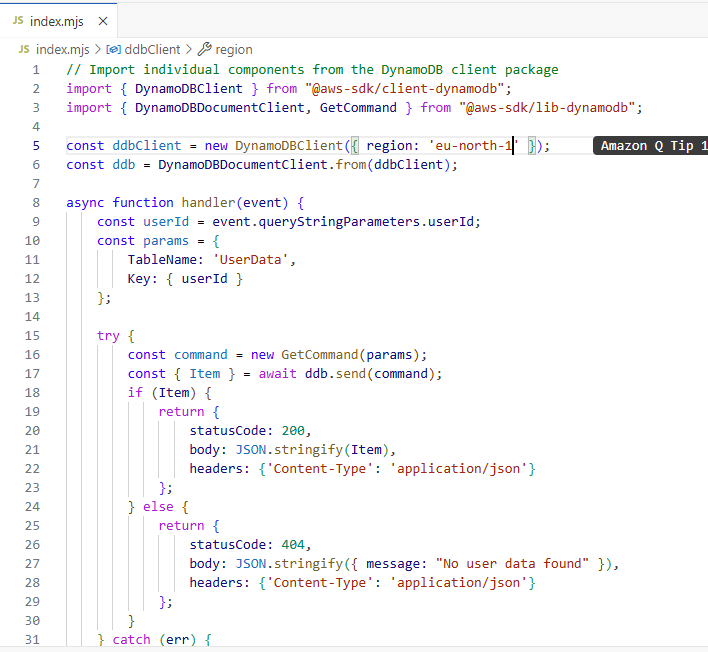
The Lambda function retrieves data by using the AWS SDK for JavaScript to interact with DynamoDB. Here’s how it works:
- Initialize the DynamoDB Client:
The function creates a DynamoDB client (DynamoDBClient) and a higher-level document client (DynamoDBDocumentClient) to simplify working with DynamoDB data. - Extract the user ID:
It reads theuserIdfrom the incoming HTTP request’s query string parameters. - Prepare the Query:
It constructs aGetCommandwith theTableNameset to'UserData'and the primary key (userId) as the key to retrieve. - Send the Command:
The function sends theGetCommandto DynamoDB using the document client.- If DynamoDB returns an item, it responds with a status code
200and the user data in JSON format. - If no item is found, it responds with
404and a message indicating no user data was found. - If an error occurs (such as a permissions or network issue), it logs the error
- If DynamoDB returns an item, it responds with a status code
Data tier
For the data tier, I will set up DynamoDB as my database. This is where I will store all the data that my application uses, such as user information, product details, or any other structured data needed by the web app. Using DynamoDB ensures that my data is highly available, scalable, and can be accessed quickly by my Lambda function.
I need to set up the data tier because I already have my website files distributed through CloudFront (the presentation tier) and a Lambda function ready to retrieve and process data (the logic tier). DynamoDB completes the architecture by providing a secure and efficient place to store and retrieve the application’s data.
We are using DynamoDB to store and manage user data for our web application. The partition key for my DynamoDB table is userId (after I created a table named UserData), which means that each item in the table is uniquely identified by its userId value. This allows us to quickly and efficiently retrieve, update, or store user information based on their unique userId. By using userId as the partition key, DynamoDB can organize and access data in a scalable way, ensuring fast lookups and consistent performance even as the amount of data grows.

Logic and Data tier
In this step, once all three layers of my three-tier architecture are set up, I will:
- Go back to S3 and update my
index.htmlfile. - Update my
script.jsfile with JavaScript code to make an API request to my API Gateway endpoint. - Verify that the data returned from the API (fetched by Lambda from DynamoDB) is displayed correctly on my website.
because this step connects the presentation tier (frontend) with the logic and data tiers (backend), allowing my website to dynamically display real user data retrieved from DynamoDB. Successfully displaying data on the site confirms that all parts of the architecture are working together as intended.
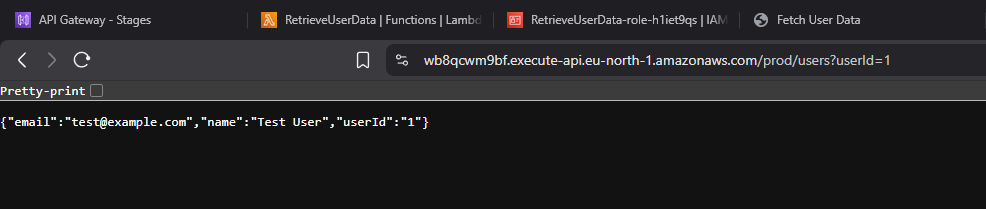
To test my API, I went back into the API Gateway console, copied the Invoke URL for my prod stage, and appended /users?userId=1 to the end of the URL. I then ran this edited URL in my web browser.
I saw the following result returned by the API:
{"email":"test@example.com","name":"Test User","userId":"1"}which means my API Gateway, Lambda function, and DynamoDB integration are working correctly. The API was able to receive the request, trigger the Lambda function, fetch the correct user data from the DynamoDB table, and return it as a JSON response. This confirms that all parts of my backend are connected and functioning as expected.
Console Errors
The error in my CloudFront distributed website occurred because my JavaScript code was still referencing a placeholder URL:https://[YOUR-PROD-API-URL]/users?userId=1
instead of the actual API Gateway endpoint.
As shown in the console error in , the fetch request failed because the placeholder
[YOUR-PROD-API-URL] was not replaced with the real API URL. This caused a TypeError: Failed to execute 'fetch' and the browser couldn't parse the URL.
To fix this, I need to update my script.js file with the actual API Gateway Invoke URL so that my website can correctly fetch user data from the backend.
To resolve the error, I updated script.js with the actual API Gateway Invoke URL and then reuploaded it into S3 because the previous version was using a placeholder URL ([YOUR-PROD-API-URL]). This placeholder caused my site to fail when trying to fetch data, resulting in errors in the browser console. By updating the script with the correct API endpoint and reuploading it to S3, I ensured that my website could successfully make requests to the backend, retrieve user data from DynamoDB, and display it to users. This step was necessary for my web app to function correctly as a complete, connected three-tier architecture.
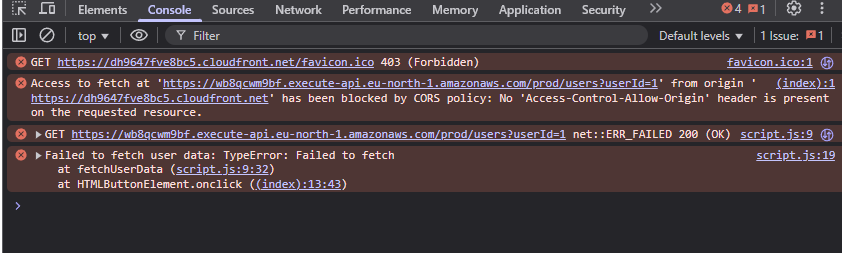
I ran into a second error after updating script.js because of a CORS (Cross-Origin Resource Sharing) issue. The error message says:
Access to fetch at 'https://wb8qcwm9bf.execute-api.eu-north-1.amazonaws.com/prod/users?userId=1' from origin 'https://dh9647fve8bc5.cloudfront.net' has been blocked by CORS policy: No 'Access-Control-Allow-Origin' header is present on the requested resource.
This happened because my frontend website is hosted on CloudFront, which has a different domain than my API Gateway endpoint. By default, browsers block requests from one origin to another unless the server (in this case, the API Gateway/Lambda backend) explicitly allows it.
Because I didn’t configure my API Gateway or Lambda function to include the appropriate Access-Control-Allow-Origin header in the response, the browser blocked the request for security reasons. To fix this, I need to enable CORS on my API Gateway, allowing requests from my website’s CloudFront domain.
Resolving CORS Errors
To resolve the CORS error, I just updated my API by enabling CORS (Cross-Origin Resource Sharing) in Amazon API Gateway. Here’s what I did:
- Went back to the API Gateway console and navigated to the Resources tab.
- Selected the
/usersresource. - Chose "Enable CORS".
- In the CORS configuration, I checked both GET and OPTIONS under Access-Control-Allow-Methods, so my API supports both types of requests.
- For Access-Control-Allow-Origin, I entered my CloudFront distribution domain name. This allows requests from my website (hosted on CloudFront) to access my API.
- Finally, I saved the changes.
This update ensures that browsers will allow my CloudFront-hosted frontend to communicate with my API Gateway backend without CORS errors.
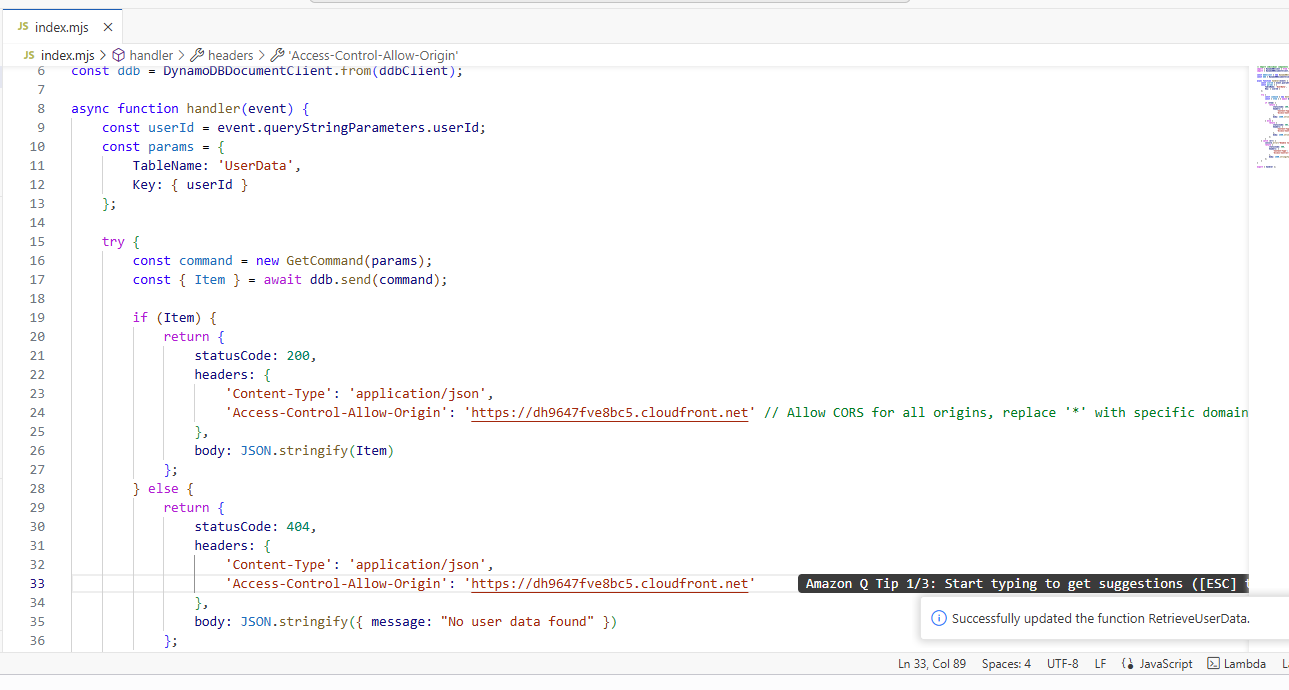
I updated my Lambda function because I am using Lambda Proxy Integration for my GET method in API Gateway. With proxy integration enabled, API Gateway forwards the full request directly to my Lambda function and expects the Lambda to return the full HTTP response—including all necessary headers like CORS.
The changes I made were to update my Lambda function code to include the Access-Control-Allow-Origin header in every response. This header is essential for enabling cross-origin requests from my CloudFront-hosted frontend to the backend API. Without it, browsers will block the response due to CORS policy.
By adding:
'Access-Control-Allow-Origin': 'https://dh9647fve8bc5.cloudfront.net'to the headers property in my Lambda responses, I ensured that only requests from my CloudFront distribution are allowed, which improves both functionality and security. Now, when a user visits my website, the frontend can successfully fetch data from my API getting blocked.
Fixed Solution
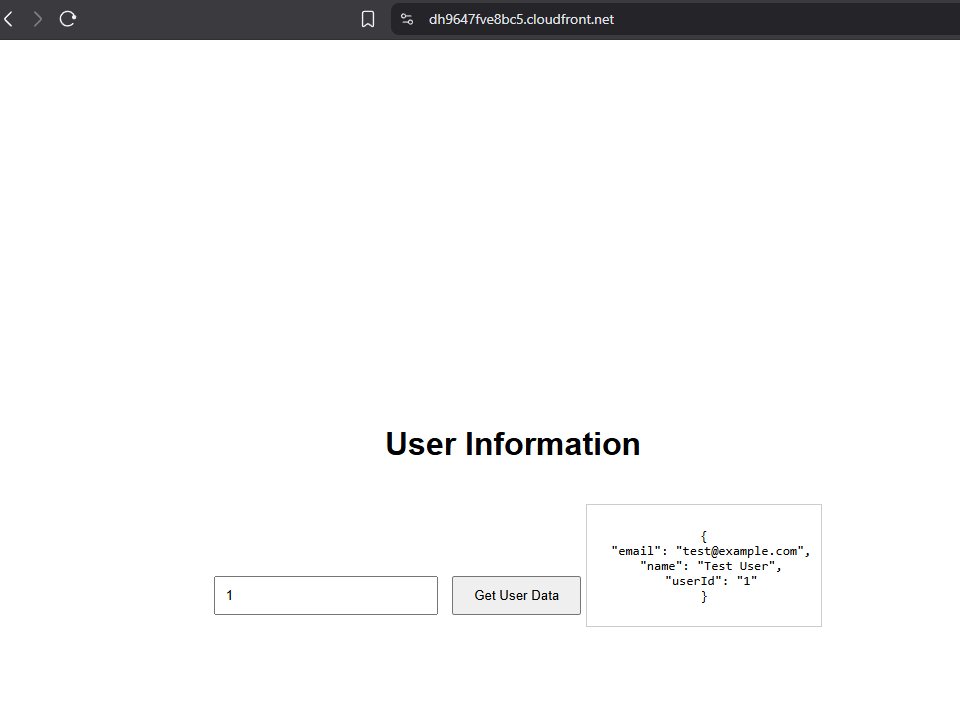
I verified the fixed connection between API Gateway and CloudFront by refreshing my CloudFront domain name one more time. After updating the CORS settings in API Gateway and adding the correct CORS headers in my Lambda function, I reloaded the website delivered through CloudFront. This time, the data from DynamoDB was successfully fetched and displayed on the site without any CORS errors in the browser console, confirming that the integration between all layers is now working as intended.