Build a CI/CD Pipeline with AWS
Project Link: View Project
Author: Duc Thai
Email: ducthai060501@gmail.com
Introducing Today's Project!
In this project, I will demonstrate how to put together an automated CI/CD pipeline using AWS CodePipeline!
💡 What is AWS CodePipeline? Why are we using it?
AWS CodePipeline is a fully managed service that automates the build, test, and deployment phases of your release process. It integrates services like CodeBuild and CodeDeploy, allowing you to automatically trigger builds and deployments whenever your code changes—no more manual steps!
I'm doing this project to learn how to connect all the pieces of a modern CI/CD pipeline, automate software delivery, eliminate repetitive manual tasks, and gain hands-on experience with real-world DevOps practices in AWS.
Key tools and concepts
Services I used were AWS CodePipeline, AWS CodeBuild, AWS CodeDeploy, and GitHub as my source repository.
Key concepts I learned include:
- How to automate the build, test, and deployment process using CI/CD pipelines
- Setting up stages in CodePipeline (Source, Build, Deploy)
- Integrating AWS services for seamless code delivery
- Using IAM roles and policies for secure service permissions
- Configuring webhook events for automatic pipeline triggers
- Managing pipeline execution modes (Superseded, Queued, Parallel)
- Implementing rollback strategies for safer deployments
- Monitoring pipeline status and logs for troubleshooting
- The importance of artifacts in passing data between stages
- Achieving hands-off, continuous delivery from code commit to production
Project reflection
This project took me approximately 3 hours to complete. The most challenging part was getting all the AWS resources to work together with the correct IAM roles and policies when setting things up through Infrastructure as Code (IaC). It was most rewarding to see my code changes automatically build and deploy all the way to production, confirming that my CI/CD pipeline works seamlessly and reliably!
Starting a CI/CD Pipeline
AWS CodePipeline is a service that with CodePipeline, you can create a workflow that automatically moves your code changes through the build and deployment stage. In our case, you'll see how a new push to your GitHub repository automtically triggers a build in CodeBuild (continuous integration), and a then a deployment in CodeDeploy (continuous deployment)!
Using CodePipeline makes sure your deployments are consistent, reliable and happen automatically whenever you update your code - with less risk of human errors! It saves you time too.
CodePipeline offers different execution modes to control how multiple runs of the same pipeline are handled:
- Superseded mode: If a new pipeline execution starts while another is still running, the new execution cancels the older one. This ensures only the latest code changes are processed—ideal for fast-moving projects.
- Queued mode: Executions happen one after another. If the pipeline is busy, new executions wait in a queue until the current one finishes. This guarantees every change is processed in order.
- Parallel mode: Multiple executions can run at the same time, independently. This is great for speeding up deployments, especially when handling changes on multiple branches.
I chose Superseded mode so only the most recent changes are deployed and older, unfinished runs are automatically cancelled.
A service role gets created automatically during setup so CodePipeline can interact with other AWS resources on your behalf. A service role is a special IAM role that lets AWS services like CodePipeline access S3 buckets, invoke CodeBuild, trigger CodeDeploy, and more. Without it, CodePipeline wouldn’t have permission to move artifacts, build your code, or deploy updates as part of your pipeline. It’s essential for secure and automated CI/CD operations.

CI/CD Stages
The three stages I’ve set up in my CI/CD pipeline are:
- Source Stage: This stage pulls the latest code from my GitHub repository and triggers the pipeline whenever new changes are pushed.
- Build Stage: Here, the source code is compiled and packaged using CodeBuild, preparing it for deployment.
- Deploy Stage: In this final stage, the built application artifacts are deployed to my target environment (an EC2 instance) using CodeDeploy.
I skipped the test stage because my Java web app is quite simple. While setting up each part, I learned how to automate code retrieval, build processes, and deployment, as well as how to connect different AWS services to create a seamless, hands-off release workflow.
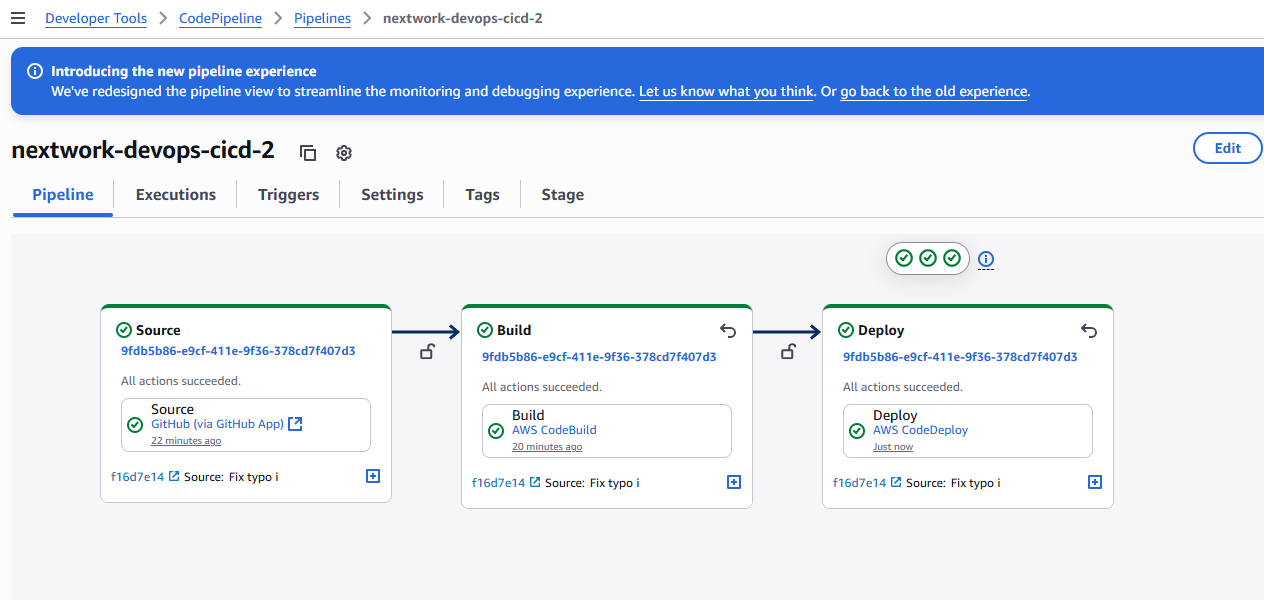
CodePipeline organizes the three stages into a visual workflow, showing the flow from Source to Build to Deploy. In each stage, you can see more details such as:
- Status (e.g., In Progress, Succeeded, Failed)
- Timestamps for when each stage started and ended
- Logs and execution history for debugging and tracking
- Input and output artifacts (files, packages, etc. passed between stages)
- Actions performed within each stage (like which build commands ran, or which deployment group was used)
- Error messages or reasons for failure, if something goes wrong
This detailed visibility helps you monitor every step of your CI/CD pipeline, quickly identify issues, and ensure your code is reliably built and deployed.
Source Stage
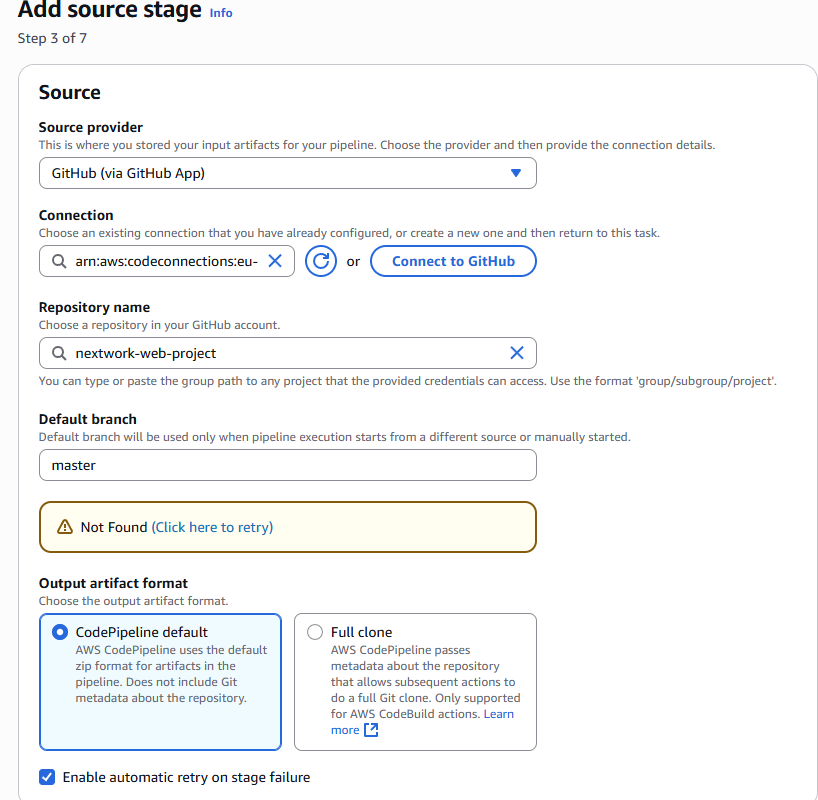
In the Source stage, the default branch tells CodePipeline which branch of your repository to monitor for changes and use as the starting point for your pipeline. Whenever code is pushed or merged into this branch, CodePipeline automatically triggers a new pipeline execution using the latest code from that branch. This ensures your CI/CD process is always working with the intended source and keeps deployments consistent with your main development workflow.
Webhook events are important in a CI/CD pipeline because they allow CodePipeline to automatically start a new pipeline execution whenever code is pushed to your specified branch in GitHub. This makes the pipeline truly "continuous," as it reacts to code changes in real time. Webhooks act as instant notifications—when you push code, GitHub sends a webhook event to CodePipeline, triggering the build and deployment process automatically. This seamless automation eliminates manual intervention, speeds up releases, and ensures your applications are always up to date with the latest changes.
Build Stage
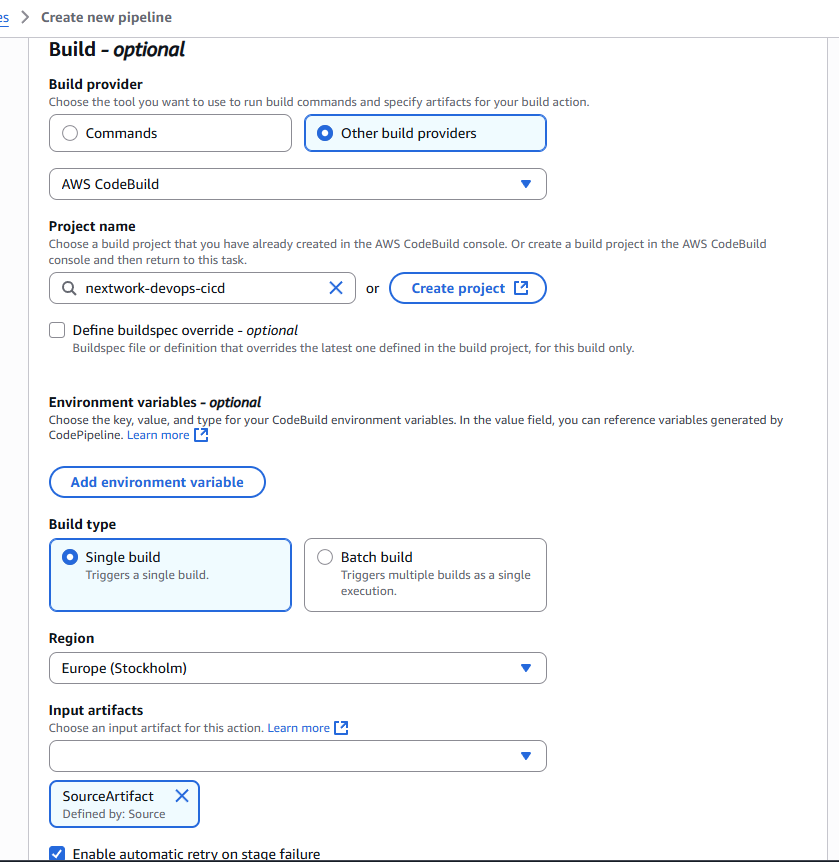
The Build stage sets up where my source code gets compiled and packaged into something that can be deployed. I configured build provider to be Other build provider (not Commands), In the Project name dropdown, I search for and select nextwork-devops-cicd. SourceArtifact is the input artifact for the Build stage because it contains the source code fetched from your repository in the Source stage. The Build stage uses SourceArtifact as its starting point to compile, test, and package your code. By specifying SourceArtifact, I am telling CodePipeline which files to build—ensuring my build provider (like CodeBuild) works with the latest code changes from my repo.
Deploy Stage
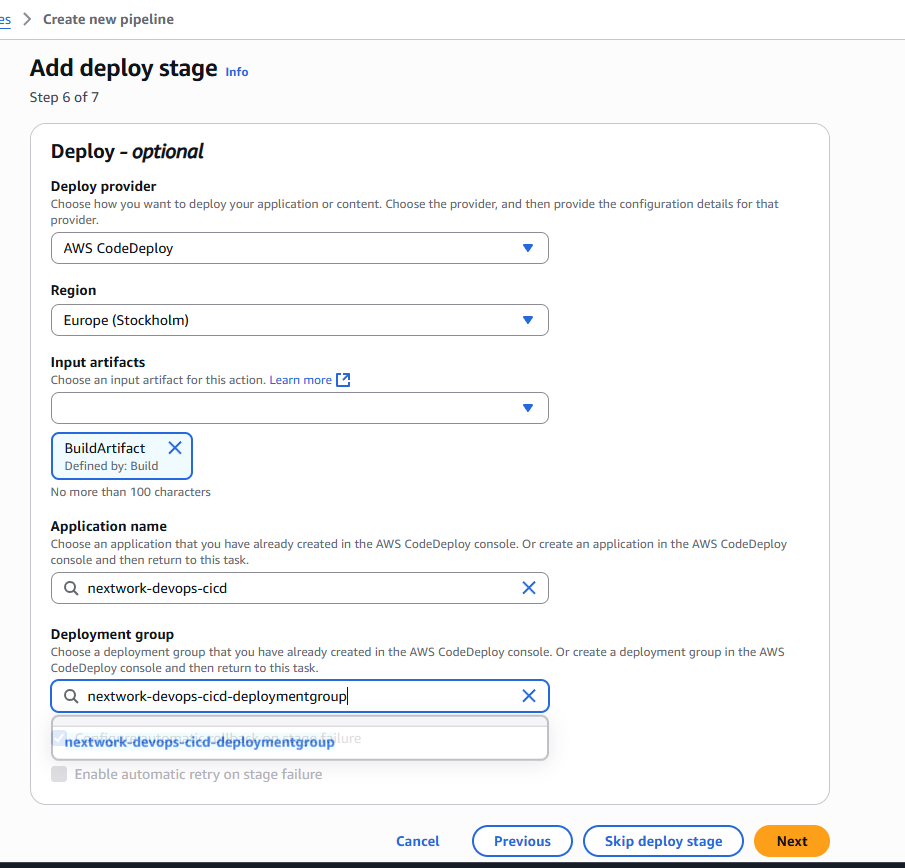
In the Deploy stage, I set up AWS CodeDeploy as the deploy provider, which takes the application artifacts produced by the Build stage and deploys them to my target environment—an EC2 instance. I selected my CodeDeploy application and deployment group from the options that automatically appeared. Additionally, I enabled the "configure automatic rollback on stage failure" option, ensuring that if the deployment fails, AWS will automatically roll back to the previous working version to maintain application stability.
Success!
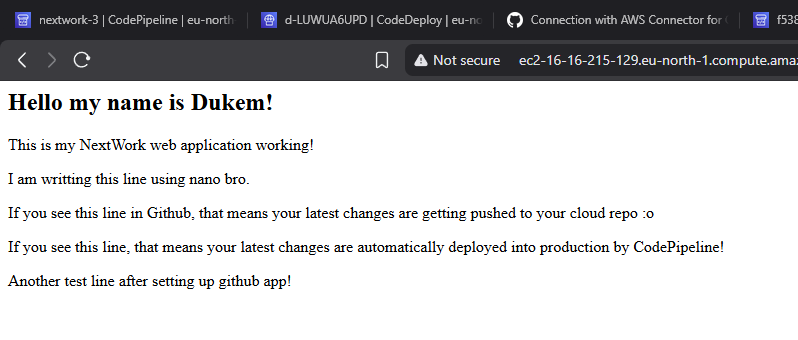
Since my CI/CD pipeline gets triggered by code changes, I tested it by opening my web app code in my local IDE (e.g., VS Code). I navigated to the index.jsp file located in src/main/webapp/ and added the following line inside the <body> section:
<p>If you see this line, that means your latest changes are automatically deployed into production by CodePipeline!</p>This change helps verify that the pipeline is working—if the new message appears in production, it means CodePipeline successfully built and deployed my latest code update.
The moment I pushed the code change, my pipeline automatically detected the update and triggered a new execution. Each stage—Source, Build, and Deploy—showed the progress and status of the pipeline run. The commit message appeared under each stage, reflecting the latest code change and helping me track exactly which update was processed. This confirmed that my pipeline is working as expected, building and deploying new code automatically whenever changes are pushed to the repository.
Once my pipeline executed successfully, I checked my deployed application in the target environment (such as my EC2 instance) to confirm that the latest changes from my source code appeared—specifically, I looked for the new line I added to the index.jsp file. Seeing this update live proved that my CI/CD pipeline is working end-to-end, automatically building and deploying code changes from GitHub all the way to production.
Testing the Pipeline
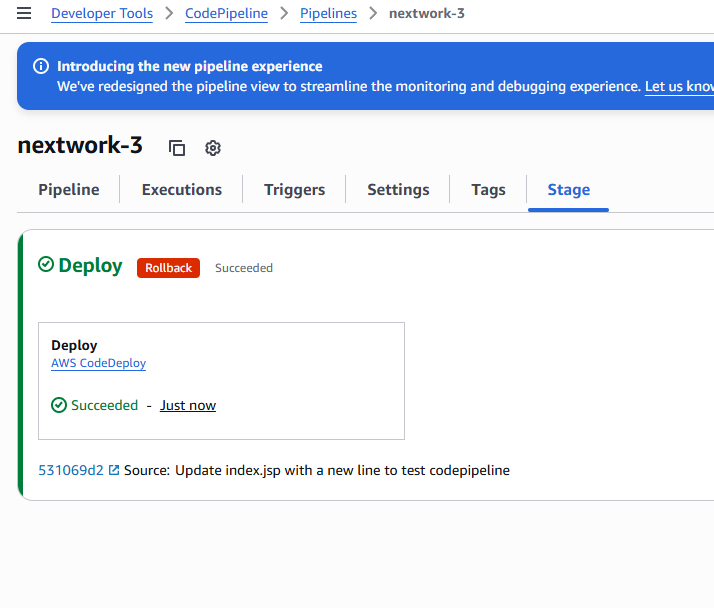
I initiated a rollback on the Deploy stage of the pipeline.
Automatic rollback is important for maintaining application stability—it ensures that if a deployment fails or encounters an error, AWS will automatically revert to the last known good version. This minimizes downtime, prevents broken releases from reaching users, and gives you more confidence in safely deploying updates.
During the rollback, the source and build stages are unaffected because rollback only impacts the Deploy stage and the application artifacts being deployed. The source stage continues to fetch the latest code, and the build stage keeps compiling the most recent code changes. Rollback simply redeploys the previous successful build artifact—it does not alter your source code or rebuild anything.
I could verify this by comparing the commit history and build logs: both would show the latest code and build outputs, even if the deployment was rolled back to an earlier version. Only the deployed application changes, not the source or build artifacts.
After the rollback, I observed that my live web application reverted to the previous working version. The new line I had added (<p>If you see this line, that means your latest changes are automatically deployed into production by CodePipeline!</p>) was no longer visible. This confirmed that the rollback successfully restored the earlier version of my application and removed the latest changes, ensuring that only the stable, previously deployed code was running in production.