VPC Endpoints
Project Link: View Project
Author: Duc Thai
Email: ducthai060501@gmail.com
VPC Endpoints
Introducing Today's Project!
What is Amazon VPC?
Amazon VPC (Virtual Private Cloud) is a virtual network in AWS that you can fully control, similar to having your own private data center in the cloud. You can define IP address ranges, subnets, route tables, and security settings.
It is useful because it allows you to isolate and secure resources, control how instances communicate with each other and the internet, and manage network traffic efficiently. Essentially, it gives you full control over your cloud network while keeping your applications safe and organized.
How I used Amazon VPC in this project
In today’s project, I used Amazon VPC to create a private network for my EC2 instance, set up public subnets, and configure VPC endpoints to securely access S3. I also managed route tables and security settings to control traffic, ensuring that the instance could interact with the S3 bucket without using the public internet. This helped me learn how VPCs provide secure, private connectivity between AWS resources.
One thing I didn't expect in this project was...
One thing I didn’t expect in this project was how powerful and flexible VPC endpoints are. I learned that with proper endpoint and bucket policies, my EC2 instance can access S3 securely without ever touching the public internet, and that even small changes in the policy immediately affect access, showing how tightly AWS controls private network connections.
This project took me...
This project took me 90 minutes.
In the first part of my project...
Step 1 - Architecture set up
In this step, I will create a VPC from scratch, launch an EC2 instance to connect to using EC2 Instance Connect later, and set up an S3 bucket because I need a private network environment where my instance can securely access S3. This setup allows me to test VPC endpoints and bucket policies to control and monitor access without using the public internet.
Step 2 - Connect to EC2 instance
In this step, I will connect directly to my EC2 instance because I need to configure and test access from the instance to other AWS resources, like S3. This connection lets me run commands, verify network settings, and ensure that the instance can securely use the VPC endpoint to interact with the bucket.
Step 3 - Set up access keys
In this step, I will give my EC2 instance access to my AWS environment by providing it with the right credentials (access keys) because the instance needs a way to authenticate and communicate with AWS services like S3. Without valid credentials, the instance can’t make authorized requests or perform actions on my behalf, such as listing or downloading S3 objects.
Step 4 - Interact with S3 bucket
In this step, I will go back to my EC2 instance and use the new access keys I just created to authorize myself to interact with S3 because the instance needs valid credentials to securely access the bucket, list its contents, and upload or download files. This ensures that my EC2 can communicate with AWS services programmatically.
Architecture set up
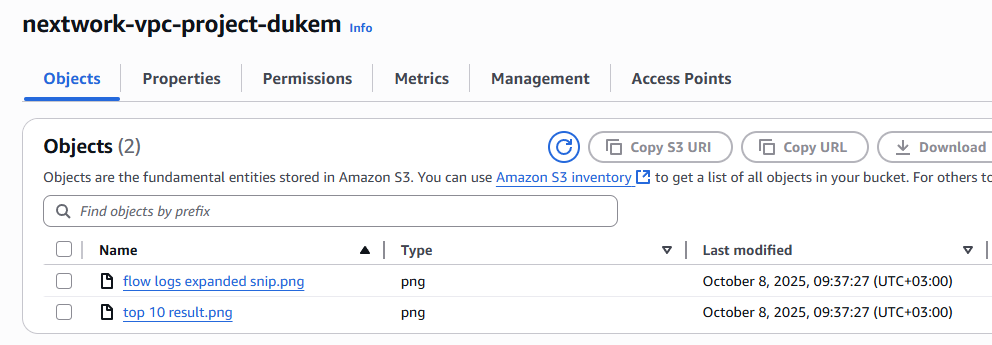
I started my project by launching one VPC and one EC2 instance inside the VPC. I also set up an S3 bucket in the same region. This gives me a network and compute environment to test secure access from the VPC to S3 using VPC endpoints and bucket policies.
I also set up bucket in Amazon S3 because I need a storage location where my EC2 instance can upload, download, and manage files. This allows me to test that my VPC and instance can securely access AWS services and helps me understand how S3 integrates with other AWS resources.
Access keys
Credentials
To set up my EC2 instance to interact with my AWS environment, I configured access key, secret key, region and outout format.
Access keys are a pair of security credentials—an Access Key ID and a Secret Access Key—that allow you to authenticate and interact with AWS services through the AWS CLI or SDKs. They work like a username and password for programmatic access, enabling your applications or instances to make authorized API calls to AWS resources.
Secret access keys are the private part of an AWS access key pair used together with the Access Key ID to authenticate programmatic requests to AWS services. They act like a password that proves your identity and allows your applications or instances to securely access and perform actions on AWS resources.
Best practice
Although I'm using access keys in this project, a best practice alternative is to use IAM roles attached to the EC2 instance. With an IAM role, the instance automatically gets temporary credentials to access AWS services securely, without storing long-term access keys. This reduces the risk of credential exposure and simplifies permission management.
Connecting to my S3 bucket
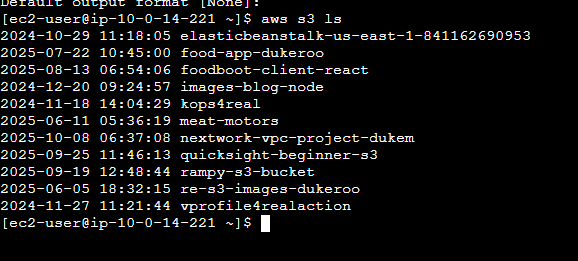
The first command I ran was 'aws s3 ls'. This command is used to list all the S3 buckets that my AWS account has access to. It helps confirm whether my EC2 instance can connect to the S3 service and whether the necessary permissions and network configurations are set up correctly.
When I ran the command aws s3 ls again, the terminal responded with:
2025-09-19 12:48:44 rampy-s3-bucket
2025-06-05 18:32:15 re-s3-images-dukeroo
2024-11-27 11:21:44 vprofile4realaction
This indicated that my EC2 instance was successfully authenticated and could access my AWS environment. It confirmed that the instance can list all S3 buckets I have permission to see, showing that the access keys and AWS CLI configuration were working correctly.
The terminal responded with:
2025-09-19 12:48:44 rampy-s3-bucket
2025-06-05 18:32:15 re-s3-images-dukeroo
2024-11-27 11:21:44 vprofile4realaction
This indicated that my EC2 instance was successfully authenticated and could access my AWS environment. It confirmed that the instance can list all S3 buckets I have permission to see, showing that the access keys and AWS CLI configuration were working correctly.
Connecting to my S3 bucket
Another CLI command I ran was:
aws s3 ls s3://nextwork-vpc-project-dukem
It returned:
2025-10-08 06:37:27 89799 flow logs expanded snip.png
2025-10-08 06:37:27 24460 top 10 result.png
This showed that the two .png files I uploaded were successfully stored in the S3 bucket. It confirmed that my EC2 instance could access the bucket, list its contents, and interact with S3 using the access keys I configured.

Uploading objects to S3
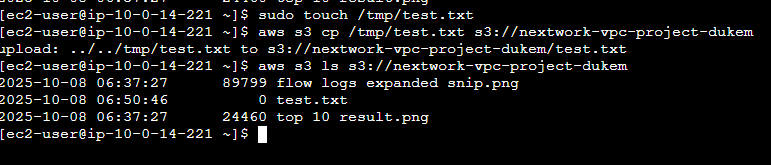
To upload a new file to my bucket, I first ran the command:
sudo touch /tmp/test.txt
This command creates an empty file named test.txt in the /tmp directory on my EC2 instance. I can then use this file to test uploading to my S3 bucket, verifying that my instance has proper access and permissions to write data to S3.
The second command I ran was:
aws s3 cp /tmp/test.txt s3://nextwork-vpc-project-dukem
This command copies the file test.txt from my EC2 instance to the S3 bucket nextwork-vpc-project-dukem. It uploads the file so that it is stored in S3, allowing me to verify that my instance can write data to the bucket and interact with AWS services using the configured access keys.
The third command I ran was:
aws s3 ls s3://nextwork-vpc-project-dukem
This validated that the file test.txt was successfully uploaded to the S3 bucket. It confirmed that my EC2 instance could access, write to, and list contents in the bucket, showing that the VPC-to-S3 connection and access permissions were correctly configured.
In the second part of my project...
Step 5 - Set up a Gateway
In this step, I will set up a VPC endpoint so my VPC and S3 can communicate directly because this allows my EC2 instance to access the S3 bucket securely without using the public internet, improving security and reducing exposure to potential attackers.
Step 6 - Bucket policies
In this step, I am going to block all traffic to my S3 bucket except traffic coming from the VPC endpoint. This is because I want to verify that the endpoint is truly providing direct access to S3 and ensure that my VPC is not using the public internet to communicate with the bucket, keeping the data secure and private.
Step 7 - Update route tables
In this step, I will try to access my S3 bucket through my EC2 instance in the VPC that has the endpoint and check for any issues because I want to verify that the VPC endpoint is working correctly and that the instance can securely communicate with S3 without using the public internet.
Step 8 - Validate endpoint conection
In this step, I will test my VPC endpoint setup again and restrict my VPC’s access to AWS services because I want to confirm that the endpoint is the only way for my EC2 instance to access S3. This ensures that all traffic is private, secure, and not going through the public internet, verifying that my configuration is working as intended..
Setting up a Gateway
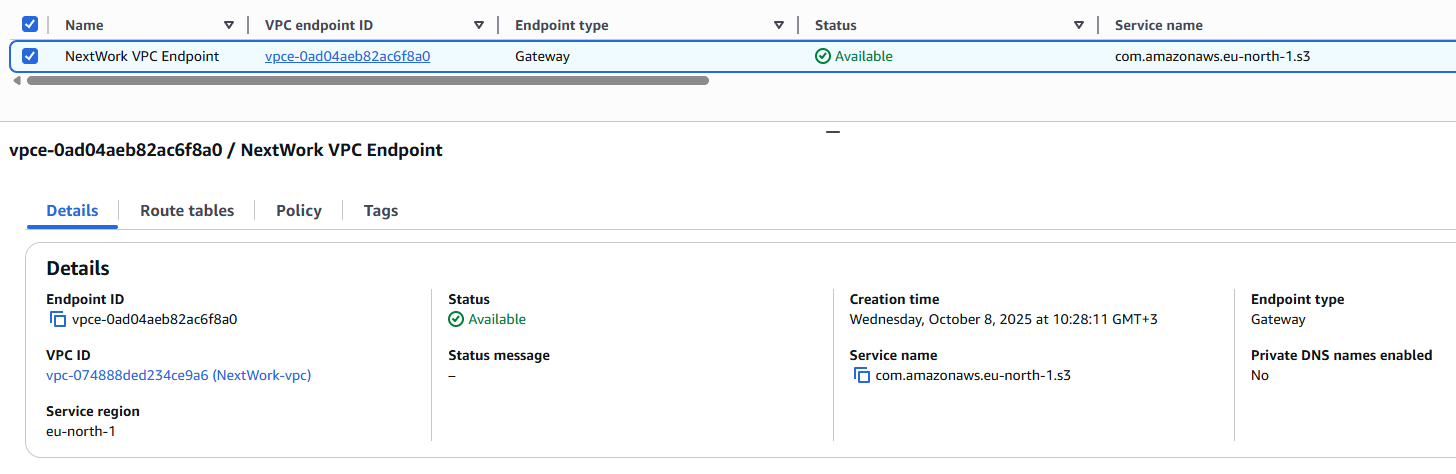
A Gateway is a type of VPC endpoint that provides a direct, private connection from your VPC to specific AWS services like S3 or DynamoDB. I set up an S3 Gateway which allows my EC2 instance to access the S3 bucket without using the public internet, ensuring secure and efficient data transfer within the AWS network.
What are endpoints?
An endpoint is a network connection that allows resources in a VPC to privately communicate with AWS services without using the public internet. For example, an S3 VPC endpoint lets an EC2 instance access S3 securely and directly within the AWS network, keeping traffic private and protected.
Bucket policies
A bucket policy is a type of IAM policy designed for setting access permissions to an S3 bucket. Using bucket policies, you get to decide who can access the bucket and what actions they can perform with it.
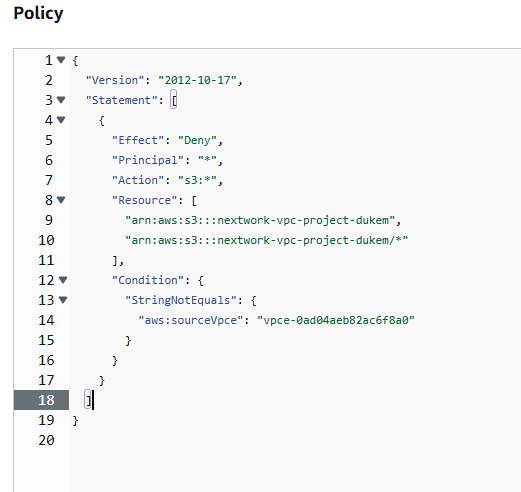
My bucket policy will block all access to the S3 bucket from any source except the specific VPC endpoint (vpce-0ad04aeb82ac6f8a0).
Effect: Deny – denies access by default.
Principal: "*" – applies to all users and services.
Action: "s3:*" – applies to all S3 actions (read, write, delete, etc.).
Condition: StringNotEquals "aws:sourceVpce" – allows access only if the request comes through the specified VPC endpoint.
This ensures that all traffic must go through the VPC endpoint, blocking any access from the public internet and keeping the bucket secure....
Bucket policies
Right after saving my bucket policy, my S3 bucket page showed “denied access” warnings because the policy blocks all access except from the specific VPC endpoint. Since I was trying to view the bucket from the AWS console without using the endpoint, my access was denied, confirming that the policy is correctly enforcing private access through the VPC endpoint only.
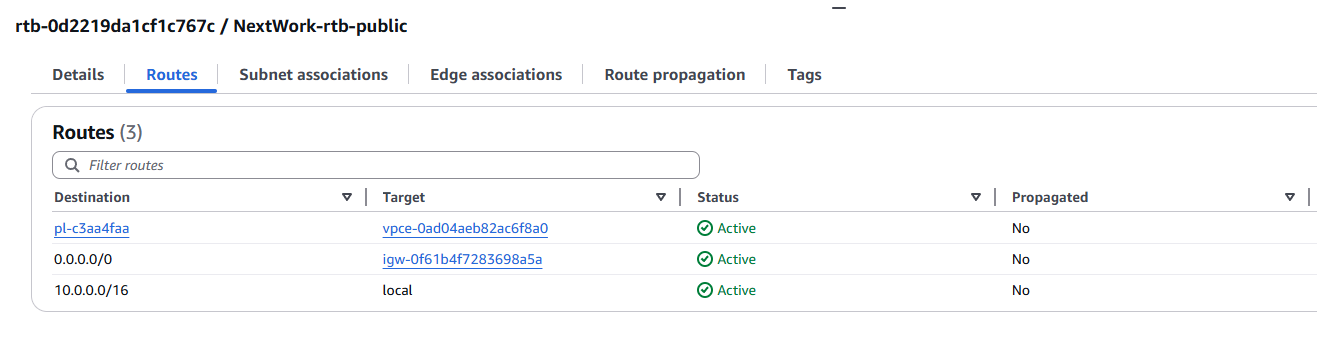
I also had to update my route table because there was no route directing traffic to S3 using my VPC endpoint as the target. Without this route, the EC2 instance wouldn’t know to send S3 requests through the endpoint, so updating the route ensures that all S3 traffic flows privately and securely within the VPC.

Route table updates
To update my route table, I went to the VPC console, selected the VPC endpoint, and associated my route table with that endpoint. After this, the route was instantly added to the route table, directing all S3 traffic from my VPC through the endpoint, enabling secure, private communication with the bucket.
After updating my public subnet’s route table, my terminal returned:
[ec2-user@ip-10-0-14-221 ~]$ aws s3 ls s3://nextwork-vpc-project-dukem
2025-10-08 06:37:27 89799 flow logs expanded snip.png
2025-10-08 06:50:46 0 test.txt
2025-10-08 06:37:27 24460 top 10 result.png
[ec2-user@ip-10-0-14-221 ~]$
This shows that my EC2 instance successfully accessed the S3 bucket through the VPC endpoint. All previously uploaded files, including test.txt, are listed, confirming that the endpoint and route table are correctly configured and traffic is flowing securely without using the public internet.
Endpoint policies
An endpoint policy is a set of permissions attached to a VPC endpoint that controls which AWS services and resources the endpoint can access and what actions are allowed. It works like an IAM policy but specifically for the endpoint, ensuring that only authorized traffic from your VPC can interact with specific services, such as S3 buckets or DynamoDB tables, while keeping the traffic private and secure.
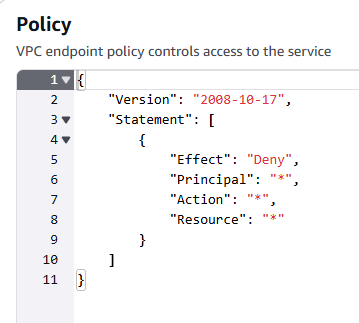
I updated my endpoint’s policy by changing the "Effect" from "Allow" to "Deny". I saw the effect immediately because I could no longer access my S3 bucket from my EC2 instance. This confirmed that the endpoint policy directly controls which actions are allowed through the VPC endpoint, and any restrictions are enforced in real time.