
Access S3 from a VPC
Project Link: View Project
Author: Duc Thai
Email: ducthai060501@gmail.com
Access S3 from a VPC
Introducing Today's Project!
What is Amazon VPC?
Amazon VPC (Virtual Private Cloud) is a virtual network in AWS that you can fully control, similar to having your own private data center in the cloud. You can define IP address ranges, subnets, route tables, and security settings.
It is useful because it allows you to isolate and secure resources, control how instances communicate with each other and the internet, and manage network traffic efficiently. Essentially, it gives you full control over your cloud network while keeping your applications safe and organized.
How I used Amazon VPC in this project
In today's project, I used Amazon VPC to create a private network for my EC2 instance, configure a public subnet, and control access to AWS services like S3. I set up route tables and security groups to manage traffic, then tested that my instance could securely connect to S3, upload files, and list bucket contents. This helped me understand how VPCs enable secure and controlled communication between AWS resources.
One thing I didn't expect in this project was...
One thing I didn’t expect in this project was how much careful configuration is needed to access AWS services from a VPC. Even with a public subnet, the EC2 instance needed proper credentials, IAM permissions, and network settings to successfully connect to S3. It showed me how important it is to combine networking and security correctly when working with AWS resources.
This project took me...
This project took me 1 hour.
In the first part of my project...
Step 1 - Architecture set up
In this step, I will create a VPC from scratch and launch an EC2 instance inside it because I want to set up a private network environment where my instance can later connect to Amazon S3. This helps me understand how VPCs control communication between AWS resources and how to securely manage access to external services like S3.
Step 2 - Connect to my EC2 instance
In this step, I will connect to my EC2 instance via EC2 Instance Connect and try to access an AWS service because I want to test whether my instance can communicate with resources outside the VPC, like Amazon S3. This helps confirm that my network setup allows outbound internet access and that my instance can reach other AWS services securely.
Step 3 - Set up access keys
In this step, I will give my EC2 instance access to my AWS environment by providing it with the right credentials (access keys) because the instance needs a way to authenticate and communicate with AWS services like S3. Without valid credentials, the instance can’t make authorized requests or perform actions on my behalf, such as listing or downloading S3 objects.
Architecture set up
I started my project by launching a VPC with one public subnet and an EC2 instance inside it that has a public IP address. This setup allows the instance to connect to the internet and interact with other AWS services like S3, which is essential for testing and configuring network access between the VPC and external resources.
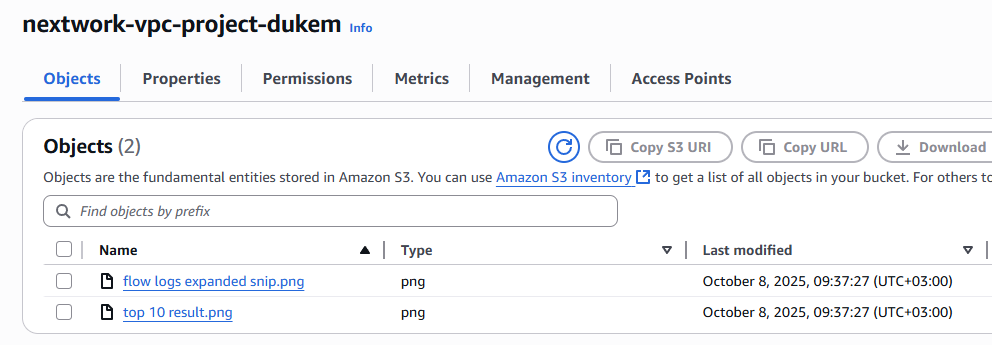
I also set up an S3 bucket in the same region as my VPC and uploaded two .png files into the bucket. This allows me to test accessing S3 from my EC2 instance and ensures that the bucket and its contents are available for network and permissions testing within my AWS environment.
Running CLI commands
AWS CLI (Command Line Interface) is a tool that lets you interact with AWS services using commands in your terminal instead of the web console. You can create, manage, and monitor AWS resources quickly with it.
I have access to AWS CLI because it’s pre-installed on my EC2 instance, allowing me to run commands like listing S3 buckets or managing configurations directly from the instance.
The first command I ran was 'aws s3 ls'. This command is used to list all the S3 buckets that my AWS account has access to. It helps confirm whether my EC2 instance can connect to the S3 service and whether the necessary permissions and network configurations are set up correctly.
The second command I ran was aws configure. This command is used to set up the AWS CLI with my credentials and default settings, such as the access key, secret key, default region, and output format. It allows my EC2 instance to authenticate with AWS services and run commands like accessing S3 securely.

Access keys
Credentials
To set up my EC2 instance to interact with my AWS environment, I configured the AWS CLI using aws configure. This command lets me enter my Access Key ID, Secret Access Key, default region, and output format, so the instance can authenticate and communicate securely with AWS services like S3.
Access keys are a pair of security credentials—an Access Key ID and a Secret Access Key—that allow you to authenticate and interact with AWS services through the AWS CLI or SDKs. They work like a username and password for programmatic access, enabling your applications or instances to make authorized API calls to AWS resources.
Secret access keys are the private part of an AWS access key pair used together with the Access Key ID to authenticate programmatic requests to AWS services. They act like a password that proves your identity and allows your applications or instances to securely access and perform actions on AWS resources.
Best practice
Although I'm using access keys in this project, a best practice alternative is to use IAM roles attached to the EC2 instance. With an IAM role, the instance automatically gets temporary credentials to access AWS services securely, without storing long-term access keys. This reduces the risk of credential exposure and simplifies permission management.
In the second part of my project...
Step 4 - Set up an S3 bucket
In this step, I will create a bucket in Amazon S3 because I need a storage location where my EC2 instance can upload, download, and manage files. This allows me to test that my VPC and instance can securely access AWS services and helps me understand how S3 integrates with other AWS resources.
Step 5 - Connecting to my S3 bucket
In this step, I will go back to my EC2 instance and use the new access keys I just created to authorize myself to interact with S3 because the instance needs valid credentials to securely access the bucket, list its contents, and upload or download files. This ensures that my EC2 can communicate with AWS services programmatically.
Connecting to my S3 bucket
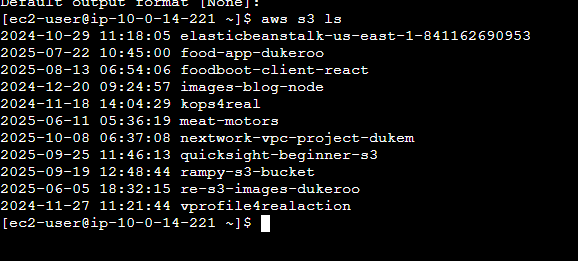
The first command I ran was 'aws s3 ls'. This command is used to list all the S3 buckets that my AWS account has access to. It helps confirm whether my EC2 instance can connect to the S3 service and whether the necessary permissions and network configurations are set up correctly.
When I ran the command aws s3 ls again, the terminal responded with:
2025-09-19 12:48:44 rampy-s3-bucket
2025-06-05 18:32:15 re-s3-images-dukeroo
2024-11-27 11:21:44 vprofile4realaction
This indicated that my EC2 instance was successfully authenticated and could access my AWS environment. It confirmed that the instance can list all S3 buckets I have permission to see, showing that the access keys and AWS CLI configuration were working correctly.
Connecting to my S3 bucket
Another CLI command I ran was:
aws s3 ls s3://nextwork-vpc-project-dukem
It returned:
2025-10-08 06:37:27 89799 flow logs expanded snip.png
2025-10-08 06:37:27 24460 top 10 result.png
This showed that the two .png files I uploaded were successfully stored in the S3 bucket. It confirmed that my EC2 instance could access the bucket, list its contents, and interact with S3 using the access keys I configured.

Uploading objects to S3
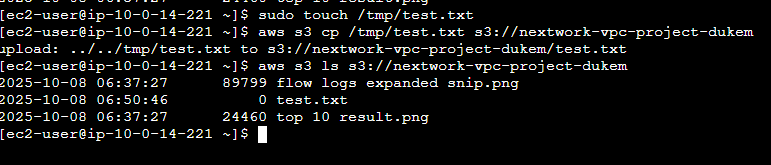
To upload a new file to my bucket, I first ran the command:
sudo touch /tmp/test.txt
This command creates an empty file named test.txt in the /tmp directory on my EC2 instance. I can then use this file to test uploading to my S3 bucket, verifying that my instance has proper access and permissions to write data to S3.
The second command I ran was:
aws s3 cp /tmp/test.txt s3://nextwork-vpc-project-dukem
This command copies the file test.txt from my EC2 instance to the S3 bucket nextwork-vpc-project-dukem. It uploads the file so that it is stored in S3, allowing me to verify that my instance can write data to the bucket and interact with AWS services using the configured access keys.
The third command I ran was:
aws s3 ls s3://nextwork-vpc-project-dukem
This validated that the file test.txt was successfully uploaded to the S3 bucket. It confirmed that my EC2 instance could access, write to, and list contents in the bucket, showing that the VPC-to-S3 connection and access permissions were correctly configured.